Showing posts with label Health Analyzer. Show all posts

Tuesday, February 18, 2014

SharePoint 2010: Health Analyzer: The Security Token Service is not available

Problem

You find the following entry in the SharePoint 2010 Central Administration Review problems and solutions All Reports listing:

TitleThe Security Token Service is not available
Severity2 - Warning
CategoryAvailability
ExplanationThe Security Token Service is not issuing tokens. The service could be malfunctioning or in a bad state.
RemedyAdministrator should try to restart the Security Token Service on the boxes where it is not issuing tokens. If problem persists, further troubleshooting may be available in the KB article. For more information about this rule, see "http://go.microsoft.com/fwlink/?LinkID=160531".
Failing Servers[NameOfFailingServer]
Failing ServicesSPSecurityTokenService (SecurityTokenService)
Rule SettingsView
 
And looking in the Windows Server Application log, you see the following error event occuring once every 15 minutes:
Log Name:      Application
Source:        Microsoft-SharePoint Products-SharePoint Foundation
Date:          [date/time]
Event ID:      8306
Task Category: Claims Authentication
Level:         Error
Keywords:     
User:          [domain\FarmServiceAccount]
Computer:      [NameOfFailingServer]
Description:
An exception occurred when trying to issue security token: Could not 
connect to 
http://localhost:[port]/SecurityTokenServiceApplication/securitytoken.svc/actas. 
TCP error code 10061: No connection could be made because the target 
machine actively refused it 127.0.0.1:[port]. .
Event Xml:
<Event xmlns="http://schemas.microsoft.com/win/2004/08/events/event">
  <System>
    <Provider Name="Microsoft-SharePoint Products-SharePoint Foundation" 
Guid="{6FB7E0CD-52E7-47DD-997A-241563931FC2}" />
    <EventID>8306</EventID>
    <Version>14</Version>
    <Level>2</Level>
    <Task>47</Task>
    <Opcode>0</Opcode>
    <Keywords>0x4000000000000000</Keywords>
    <TimeCreated SystemTime="[date/time]" />
    <EventRecordID>29898</EventRecordID>
    <Correlation ActivityID="{4F0A4944-93C2-44D8-9C81-68162604774B}" />
    <Execution ProcessID="7128" ThreadID="3156" />
    <Channel>Application</Channel>
    <Computer>[NameOfFailingServer]</Computer>
    <Security UserID="S-1-5-21-3026233045-20759957-1393672501-82644" />
  </System>
  <EventData>
    <Data Name="string0">Could not connect to 
http://localhost:[port]/SecurityTokenServiceApplication/securitytoken.svc/actas. 
TCP error code 10061: No connection could be made because the target machine 
actively refused it 127.0.0.1:[port]. </Data>
  </EventData>
</Event>
Solution
  1. Solution A: Restart the Security Token Service application pool:
    1. As Administrator, launch IIS Manager.
    2. In the Connections pane (at left), expand the tree to view Application Pools.
    3. Select Application Pools.  This updates the results pane (center pane).
    4. Right-click on SecurityTokenServiceApplicationPool, and then click Stop.
    5. Right-click on SecurityTokenServiceApplicationPool, and then click Start.
    6. Go back to Central Administration, Review problems and solutions :All Reports view.
    7. Click on the issue, The Security Token Service is not available.
    8. Click Re-analyze Now.
    9. Click Close.
    10. Refresh after several minutes.
  2. Solution B: Re-provision the service
    1. Launch the SharePoint Management Shell as Administrator.
    2. Run the following script:
      $sts = Get-SPServiceApplication | ?{$_ -match "Security"}
      $sts.Status
      $sts.Provision()​
      
    3. Go back to Central Administration, Review problems and solutions :All Reports view.
    4. Click on the issue, The Security Token Service is not available.
    5. Click Re-analyze Now.
    6. Click Close.
    7. Refresh after several minutes.
References

Saturday, February 15, 2014

SharePoint 2010 Health Analyzer: One or more servers is not responding: SharePoint 2010 Timer Service Stopped

Problem

You find the following entry in the SharePoint 2010 Central Administration Review problems and solutions All Reports listing:

TitleOne or more servers is not responding.
Severity1 - Error
CategoryAvailability
ExplanationThe following servers have not executed any timer jobs in the last 2 hours: [SharePointServer1].  This can happen if the server was shut down or lost network connectivity, or if the timer service on that server has crashed, hung, or been stopped.
RemedyEnsure that the server(s) listed above are running and connected to the network.  If the timer service is not started, restart the service by typing the following command at the command prompt on each server: "net start SPTimerV4."  If the server was intentionally removed from the farm, remove the record of the server from the SharePoint topology in the Central Administration site at http://[pathtoCA]. For more information about this rule, see"http://go.microsoft.com/fwlink/?LinkID=142656".
Failing Servers 
Failing ServicesSPTimerService (SPTimerV4)
Rule SettingsView
 
Troubleshooting
  1. Reviewed job history for SharePointServer1.
    • Result: no job currently scheduled, nor any job completed since midnight.
  2. Remoted into SharePointServer1, opened Services, scrolled to SharePoint 2010 Timer, and then viewed status.
    • Result: service is set to Auto and is stopped.
  3. Started this service and monitored for a short while.
    • Result: service remained started.
  4. Returned to CA, refreshed Job History page for SharePointServer1:
    • Result: new jobs began appearing in history.  All jobs completed successfully except for two, which were repeatedly aborted: Service Application Instance Provisioning Job, Application Server Administration Service Timer Job.
  5. Clicked Aborted status for Service Application Instance Provisioning Job.
    • Result: message: "The administration service job definition 'SecurityTokenServiceApplication' (id 5e0bad8b-948b-460a-8bb2-19da7e10fd9c) was not executed because the administration service on this server is not started. This job definition can be run manually using 'stsadm -o execadmsvcjobs'. "
  6. Clicked Aborted status for Application Server Administration Service Timer Job.
    • Result: message: The administration service job definition 'job-application-server-admin-service' (id 43b74f53-53ba-4eb2-981d-28c13bf012e2) was not executed because the administration service on this server is not started. This job definition can be run manually using 'stsadm -o execadmsvcjobs'.
  7. Remoted into SharePointServer1, opened Services, scrolled to SharePoint 2010 Administration, and then viewed status.
    • Result: service is set to Auto and is stopped.  Also noted that its logon is set to Local System.
  8. Remoted into SharePointServer2 to compare.  Opened Services, scrolled to SharePoint 2010 Administration, and then viewed status.
    • Result: service is set to Auto and is started.  Also noted that its logon is set to Local System.
  9. Remoted into SharePointServer1, opened Services, scrolled to SharePoint 2010 Administration, and then started service and observed.
    • Result: service remained started.
  10. Returned to CA, refreshed Job History page for SharePointServer1, and looked for SharePoint 2010 Timer Service Job status.
    • Result: job repeatedly being completed successfully.
  11. Looked for Service Application Instance Provisioning Job status.
    • Result: this job did not reappear.
  12. Returned  SharePoint 2010 Central Administration Review problems and solutions All Reports listing, and clicked on error.  Clicked Re-analyze Now button.
    • Result: Severity changed to "4 - Success"
Summary

This was a straightforward SharePoint Health Analyzer rule issue to resolve.  It helped to correlate the issue against Windows Server logs.

References
Notes
  • Starting the SharePoint 2010 Administration will generate an error event in the server Application log: EventID 2137: The SharePoint Health Analyzer detected an error.  One or more services have started or stopped unexpectedly.

Saturday, January 18, 2014

SharePoint 2010 Health Analyzer: The timer service failed to recycle

Problem

You find the following entry in the SharePoint 2010 Central Administration Review problems and solutions listing:

TitleThe timer service failed to recycle.
Severity2 - Warning
CategoryPerformance
ExplanationThe last attempt to recycle the timer service failed as have most of the other attempts during the past week. Recycling typically fails because other timer jobs are running when the recycle is scheduled. To view which jobs blocked the recycle view the history for the recycle job and click on the failed status link for more information. The error message for the failed job entry will contain a list of jobs that were still running. The history for the recycle job can be found at: [path to timer job history for the associated timer job]
RemedyChange the schedule for the timer recycle job so that it does not conflict with other long-running timer jobs. This can be done from the central administration site at [path to timer job history for the associated timer job].  For more information about this rule, see "http://go.microsoft.com/fwlink/?LinkID=142615".
Failing Servers[server name list]
Failing ServicesSPTimerService (SPTimerV4)
Rule SettingsView
 
Troubleshooting
  1. Navigate to the timer job history and see the list of instances that failed. 
  2. Clicking the Failed status link, the following error message is seen: The timer service was not recycled because the following jobs were still running: Microsoft SharePoint Foundation Usage Data Import.
  3. CA > Monitoring > Timer Job Status, Job Definition: Timer Service Recycle, View: Job Definition
    1. Scheduled to run daily @ 6PM on all farm servers
    2. Duration : 00:10:30.
  4. CA > Monitoring > Timer Job Status, Job Definition: Microsoft SharePoint Foundation Usage Data Import, View: Job Definition
    1. Scheduled to run every 30 minutes on all farm servers
    2. Duration: varies between 6 and 9 hours
    3. Progress has been stuck at 0% for all farm servers for many hours.
    4. Reviewing history: when first started, completed in 2-3 hours.  Now, two weeks later, completes in 6-9 hours.  Steady increases in duration logged over this period.
Solution
  1. At next maintenance window, bounced servers (for other maintenance as well).  This effectively restarted the SharePoint 2010 Timer service
  2. Durations had reached 11+ hours for Microsoft SharePoint Foundation Usage Data Import jobs on all servers.
  3. Reviewed job history for Microsoft SharePoint Foundation Usage Data Import:
    1. Durations dropped from over 11 hours down to minutes.
      1. Application Server: few minutes
      2. WFE1: several minutes
      3. WFE2: 10+ minutes.
    2. Difference between WFEs is interesting.  Will need to research this.
  4. Manually started Timer Service Recycle job
  5. Checked Timer Service Recycle job history several hours later:
    1. Succeeded for all servers.
  6. Reopened issue, and then clicked Reanalyze Now.
  7. Checked report a few minutes later:
    1. Issue gone.
This is only a temporary solution until I can get the machines patched through December 2013 CU, which, according to one of the references below, is one solution to this problem.

Notes
  • Server OS: Windows 2008 R2
  • SharePoint Farm patch level: 14.0.6123.5000
  • Verified that KB2775511 not installed on server
References

Thursday, January 16, 2014

SharePoint 2010 Health Analyzer: Missing server side dependencies

Problem

The following issue appears in the SharePoint 2010 Central Administration Review problems and solutions report:

TitleMissing server side dependencies.
Severity1 - Error
CategoryConfiguration
Explanation[MissingWebPart] WebPart class [baf5274e-a800-8dc3-96d0-0003d9405663] is referenced [22] times in the database [CA-Content-DB], but is not installed on the current farm. Please install any feature/solution which contains this web part. One or more web parts are referenced in the database [CA-Content-DB], but are not installed on the current farm. Please install any feature or solution which contains these web parts.
[MissingWebPart] WebPart class [9f56656f-6aa3-0d55-a812-711bf65864ea] is referenced [101] times in the database [CA-Content-DB], but is not installed on the current farm. Please install any feature/solution which contains this web part. One or more web parts are referenced in the database [CA-Content-DB], but are not installed on the current farm. Please install any feature or solution which contains these web parts.
[MissingWebPart] WebPart class [874f5460-71f9-fecc-e894-e7e858d9713e] is referenced [63] times in the database [CA-Content-DB], but is not installed on the current farm. Please install any feature/solution which contains this web part. One or more web parts are referenced in the database [CA-Content-DB], but are not installed on the current farm. Please install any feature or solution which contains these web parts.
RemedyFor more information about this rule, see "http://go.microsoft.com/fwlink/?LinkID=142689".
Failing Servers 
Failing ServicesSPTimerService (SPTimerV4)
Rule SettingsView

Solution
  1. In Central Administration, navigate to: CA > Application Management > Manage Service Applications > Search Service Application > Manage.  This takes you to the SearchAdministration page.
  2. Next, navigate to: CA > Application Management > Manage Service Applications > Search Service Application > Manage > Farm Search Administration.  This takes you to the SearchFarmDashboard page.
  3. Then, navigate to: CA > Monitoring > Health Analyzer > Review problems and solutions.
  4. Click the issue link, click Reanalyze Now, and then click Close.
  5. Wait a few minutes, and then refresh the page.
References

SharePoint 2010 Health Analyzer: The Unattended Service Account Application ID is not specified or has an invalid value

Problem

The following issue appears in the SharePoint 2010 Central Administration Review problems and solutions report:

TitleThe Unattended Service Account Application ID is not specified or has an invalid value.
Severity2 - Warning
CategorySecurity
ExplanationThe Unattended Service Account is a single account that all documents can use to refresh data. It is required when connecting to data sources external to SharePoint, such as SQL. Without a valid Unattended Service Account Application ID, Visio Graphics Services will not be able to refresh Web Drawings that are connected to external data sources.
The rule for the Unattended Service Account Application ID failed. The ID does not exist. Visio Services
RemedyTo resolve this issue, the Visio Graphics Services administrator must provision the Secure Store Service, create a target application, and assign the ID of this target application to this setting. For more information about this rule, see "http://go.microsoft.com/fwlink/?LinkID=142617".
Failing Servers 
Failing ServicesVisioGraphicsService
Rule SettingsView

Solution

This issue may occur if the Secure Store Service or Secure Store Target Application have not yet been configured.
  1. In farm Central Administration, navigate to: CA > Application Management > Service Applications > Manage Service Applications > Secure Store Service Application.
  2. Review the available target applications and determine which one to use. 
    If you see the error, "The Secure Store Service application Secure Store Service is not accessible," go to this reference for steps on resolving it.
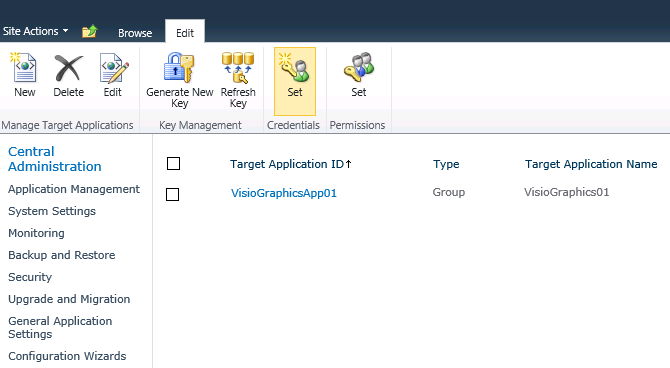
  3. Note down the Target Application ID associated with the selected target application.  For this posting, VisioGraphicsApp01 is used.
  4. Now navigate to: CA > Application Management > Service Applications > Manage Service Applications > Visio Graphics Service Application > Global Settings.
  5. Enter the Target Application ID above into the Application ID field, and click OK.
  6. Navigate back to: CA > Monitoring > Health Analyzer > Review problems and solutions.
  7. Click on the issue again, then click the Reanalyze Now button, and then click Close.
  8. Wait a few minutes, and then refresh the page.
References

Health Analyzer: The Visio Graphics Service has a minimum cache age setting that may cause a security issue

Problem

The following issue appears in the SharePoint 2010 Central Administration Review problems and solutions report:

TitleThe Visio Graphics Service has a minimum cache age setting that may cause a security issue.
Severity1 - Error
CategoryPerformance
ExplanationSetting minimum cache age to 0 minutes may leave the Visio Graphics Service open to a denial of service (DoS) attack. A value of 0 for this setting may lead to large processor and network load of the Visio Graphics Service and SharePoint, decreasing the expected performance of both. However, increasing this value means that users will not see their Web Drawings refreshing as frequently.
The minimum cache age rule for value 0 failed. Visio Services
RemedyThe resolve this issue, the Visio Graphics Service administrator must assign a value greater than 0 minutes to this setting. For more information about this rule, see "http://go.microsoft.com/fwlink/?LinkID=142657".
Failing Servers 
Failing ServicesVisioGraphicsService
Rule SettingsView

Solution

You may see this issue appear if, after testing Visio services, you forget to change the cache age settings back to their recommended value ranges.  To solve:
  1. Go to farm Central Administration.
  2. Navigate to: CA > Application Management > Manage Service Applications > Visio Graphics Services Application > Global Settings.
  3. Set Minimum Cache Age to a value > 5 (minutes).
References

Monday, December 30, 2013

Health Analyzer: Database has large amounts of unused space

Problem

You find the following entry in the SharePoint 2010 Central Administration Review problems and solutions All Reports listing:

TitleDatabase has large amounts of unused space.
Severity3 - Information
CategoryAvailability
ExplanationFollowing databases have large amounts of space allocated on the disk but not in use. This may be due to recent deletion of data form the database, or because the database has been pre-grown to a larger size. This database will take up a larger amount of space on the file system unless it is shrunk down to a smaller size. [databasename] on [machinename]
RemedyThe database can be shrunk in size using the DBCC ShrinkDatabase command or the Shrink Database wizard in SQL Server Management Studio. For more information about this rule, see "http://go.microsoft.com/fwlink/?LinkID=167144".
Failing Servers 
Failing ServicesSPTimerService (SPTimerV4)
Rule SettingsView
 
Solution

Depending on the size of the database, run the Shrink Database task in Microsoft SQL Server Management Studio.
  1. Right-click on the database
  2. Go: Tasks > Shrink > Database. 
References

InfoPath Forms Services forms cannot be filled out in a Web browser because no State Service connection is configured

Problem

You find the following entry in the SharePoint 2010 Central Administration Review problems and solutions All Reports listing:

TitleInfoPath Forms Services forms cannot be filled out in a Web browser because no State Service connection is configured.
Severity2 - Warning
CategoryConfiguration
ExplanationInfoPath Forms Services is not functional on the following Web applications because there is no service connection configured for the State Service: [servicename]
RemedyIf a State Service application doesn't exist, create one by using the new-SPStateServiceApplication Powershell commandlet. For more information on configuring the State Service, see Help. For more information about this rule, see "http://go.microsoft.com/fwlink/?LinkID=142645".
Failing Servers[servername]
Failing ServicesSPTimerService (SPTimerV4)
Rule SettingsView
 
Solution

Create the State Service application and proxy using the following PowerShell script:
$mysa = New-SPStateServiceApplication -Name "State Service" New-SPStateServiceDatabase -Name "DB_StateService" –ServiceApplication $mysa New-SPStateServiceApplicationProxy -Name "State Service Proxy" -ServiceApplication $mysa –DefaultProxyGroup

Summary

This posting has presented a PowerShell method for resolving the SharePoint 2010 Health Analyzer warning.  Using the PowerShell method avoids creating a database having a long name that includes a GUID string.  For additional detail on the topics discussed in this posting, see the references below.

References

Sunday, December 1, 2013

Health Analyzer: Built-in accounts are used as application pool or service identities

Problem

You see the following warning appear in the Review problems and solutions list in SharePoint 2010 Central Administration:
Built-in accounts are used as application pool or service identities
Solution
  1. Click on the warning title.  The warning description dialog appears:
  2. The error description dialog identifies the cause of the problem: the DCLoadBalancer14, SPSearch4 and DCLauncher14 services are being run by a built-in account of the machine hosting the services.
    In this case, all of the services are running on a single application server, part of a small two-tier farm.  In multi-server farms where services may be running on other machines, you will need to perform this check on each server.
  3. In Central Administration, go: Security > General Security > Configure service accounts.
  4. From the service dropdown (upper one), select Windows Service - Document Conversions Load Balancer Service.  This is what is referred to in the warning as "DCLoadBalancer14(Windows Service). The page is updated to show the service components and the account running the service:
  5. From the Select an Account for this component dropdown, select a managed account.  For this posting, the Contoso\sp_app account was used.
  6. Click OK.
  7. Navigate back to the Review problems and solutions page in Central Administration.
  8. Click on the warning title, Built-in accounts are used as application pool or service identities:
  9. Click Reanalyze Now.
  10. Wait a minute or two, and then click on the warning title again.
  11. Verify that DCLoadBalancer14(Windows Service) is no longer included in the warning:
  12. Repeat the above steps, this time choosing Windows Service - Document Conversions Launcher Service.  This is what is referred to in the warning as "DCLauncher14(Windows Service)."
  13. Verify that DCLauncher14(Windows Service) is no longer included in the warning:
  14. Repeat the above steps, this time choosing Windows Service - SharePoint Foundation Search.  This is what is referred to in the warning as "SPSearch4(Windows Service)."
  15. Verify that the warning, Built-in accounts are used as application pool or service identities, is no longer listed:
  16. This concludes this procedure.
Summary

This posting presented steps for resolving the Health Analyzer warning, Built-in accounts are used as application pool or service identities.  For additional detail on this topic, see the references below.

References

Health Analyzer: Accounts used by application pools or service identities are in the local machine Administrators group

Problem

You see the following warning appear in the Review problems and solutions list in SharePoint 2010 Central Administration:
Accounts used by application pools or service identities are in the local machine Administrators group
Solution
  1. Click on the warning title.  The warning description dialog appears:
  2. The error description dialog identifies the cause of the problem: the farm administration and timer service accounts are members of the local machine Administrators group. 
    During initial deployment, the farm account is provisioned as a domain user account with local machine administrator privileges.  The farm account only needs local administrator privileges during SharePoint farm provisioning.  Once farm provisioning is completed, this account can be removed from the local administrators group.  You will need to add this back to the local Administrators group during subsequent provisioning tasks, such as User Profile Provisioning.
  3. In Central Administration, go: Security > General Security > Configure service accounts.
  4. From the service dropdown (upper one), select Farm Account.  This refers to the Central Administration service.  The page is updated to show the service components and the account running the service.
  5. Verify that the farm account (in this case, Contoso\sp_farm) is running the Central Administration service:
  6. Login to the machine hosting your SharePoint 2010 farm Central Administration.
  7. Go: Start > Administrative Tools > Services.
  8. Scroll down to the SharePoint 2010 Timer service.
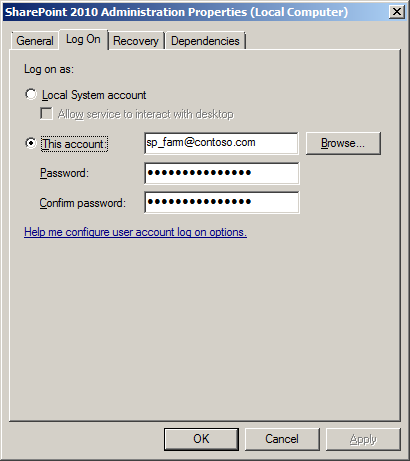
  9. Double-click this service, and then select the Log On tab.
  10. Verify that the farm account is entered:
  11. On the local machine, go: Start > Administrative Tools > Computer Management
  12. In the tree console at left, expand Local Users and Groups, and then select Groups.  The results panel in the middle updates to list local machine groups.
  13. Double-click the Administrators group.  This is the local machine administrators group.
  14. Verify that the farm account appears:
  15. In the Members pane, select the farm account, and then click Remove.  The account no longer appears.
  16. Click OK, and then logout of the local machine hosting Central Administration.
  17. In Central Administration, in the message bar, click View these issues.
  18. On the Review problems and solutions page, click the warning message link, Accounts used by application pools or service identities are in the local machine Administrators group.  The warning description dialog appears:
  19. Click the Reanalyze Now button, and then click Close.
  20. Wait a minute of two, and then refresh the page.  The warning message no longer appears:
  21. This concludes this procedure.
Troubleshooting

If, after performing the steps above, the warning message remains, try the following:
  1. Re-run Rule Definition:
    1. In Central Administration, go: Monitoring > Health Analyzer > Review rule definitions.
    2. On the Health Analyzer Rule Definitions page, in the Category: Security group, click the rule definition link, Accounts used by application pools or service identities are in the local machine Administrators group.
    3. Click the Run Now button, then click Close.
    4. Wait a minute or two, and then return to Review problems and solutions page.
    5. Verify that the warning no longer appears.
  2. Reset Farm Service
    1. Login to the local machine hosting the farm Central Administration application.
    2. Go: Start > Administrative Tools > Services.
    3. Scroll down to the SharePoint 2010 Administration service.
    4. Double-click this service.  The services properties dialog appears.
    5. Select the Log On tab.
    6. If not selected, select  the This account option.
    7. Enter or re-enter the farm account.  For this posting, the farm account is Contoso\sp_farm
    8. At the warning prompt, "The new login name will not take effect until you stop and restart the service," click OK.
    9. Stop and restart the service, and then click OK.
    10. Wait a minute or two, and then return to Review problems and solutions page.
    11. Verify that the warning no longer appears.
  3. Reset the Farm Timer Service
    1. Login to the local machine hosting the farm Central Administration application.
    2. Go: Start > Administrative Tools > Services.
    3. Scroll down to the SharePoint 2010 Timer service.
    4. Double-click this service.  The services properties dialog appears.
    5. Select the Log On tab.
    6. If not selected, select  the This account option.
    7. Enter or re-enter the farm account. For this posting, the farm account is Contoso\sp_farm:
    8. At the warning prompt, "The new login name will not take effect until you stop and restart the service," click OK.
    9. Stop and restart the service, and then click OK.
    10. Wait a minute or two, and then return to Review problems and solutions page.
    11. Verify that the warning no longer appears.
Summary

This posting presented steps for resolving the Health Analyzer warning, Accounts used by application pools or service identities are in the local machine Administrators group.  It has also presented troubleshooting steps for resolving this warning, if the usual approach appears to fail.  For additional detail on this topic, see the references below.

References
Notes
  • If you have not previously modified the services directly, through the Windows Services control applet, you will likely see the account entered as "[domain]\[account name]."  This is how it looks after a fresh install.  Once you edit the account, it will change to "[account name]@[domain]."  This is one way to tell if you need to restart the service.

Saturday, November 30, 2013

Health Analyzer: The server farm account should not be used for other services

Problem

You connect to Central Administration and observe a critical issue:
You click the link, View these issues, displayed in the message bar, and you see the error, The server farm account should not be used for other services, appear in the SharePoint 2010 Health Analyzer Review problems and solutions report:
Solution
  1. Click the error link to view its description dialog:
  2. The error description dialog identifies the cause of the problem: the Web Analytics Data Processing Service is being run by the farm account.
  3. Close the dialog.
  4. In Central Administration, go: Security > General Security > Configure service accounts.  The Service Accounts page appears.
  5. From the dropdown, select Windows Service - Web Analytics Data Processing Service.
    .
  6. From the Select an account for this component dropdown, select a managed account other than the farm account.  For this posting, the sp_app account was selected:
  7. Navigate back to the Review problems and solutions page, and then click the error link, The server farm accounts should not be used for other services.
  8. On the error description dialog, look for the button Reanalyze Now:
    This launches the Health Analyzer
  9. Click this button.  After you click this button, it will become disabled.
  10. Click Close.  The error description dialog closes. Wait a minute or two for the Health Analyzer job to complete.
  11. Refresh the page: the error no longer appears:
Summary

This posting presented steps for resolving the health analyzer rule, The server farm account should not be used for other services. For additional details on this topic, consult the references below.

References
Notes
  • By default, the rule governing the Health Analyzer checking this condition runs weekly.  You can verify this yourself by going: Monitoring > Health Analyzer > Review rule definitions. Look in the Category: Security group.