Showing posts with label SQL Server 2012. Show all posts

Tuesday, April 26, 2016

SharePoint 2013: SQL Server: Status: Warning: One or more tasks failed

Problem

You have configured regular maintenance plans for your SharePoint 2013 farm's SQL Server backend, including full, differential and transaction, and these plans generate reports on completion. Reviewing the differential backup report, you see the following:
Microsoft(R) Server Maintenance Utility (Unicode) Version 11.0.6020
Report was generated on "[Server name]\[SQL Server named instance]".
Maintenance Plan: User Database Differential backup MP
Duration: 00:00:02
Status: Warning: One or more tasks failed.
Details:
Back Up Database (Differential) ([Server name]\[SQL Server named instance])
Backup Database on Local server connection
Databases that have a compatibility level of 70 (SQL Server version 7.0) will be skipped.
Databases: All user databases
Type: Differential
Append existing
Task start: [beginning time/date stamp].
Task end: [ending time/date stamp].
Failed:(-1073548784) Executing the query "BACKUP DATABASE [a-farm-database..." failed with the following error: "Cannot perform a differential backup for database "[a-farm-database]", because a current database backup does not exist. Perform a full database backup by reissuing BACKUP DATABASE, omitting the WITH DIFFERENTIAL option.
BACKUP DATABASE is terminating abnormally.". Possible failure reasons: Problems with the query, "ResultSet" property not set correctly, parameters not set correctly, or connection not established correctly.
The failure of the differential backups to complete presented a database recovery inconsistency problem.  At present, during any given week, farm databases could only be recovered up to the most recent successful differential and transaction logs that completed prior to the failed backup.  This presented a potential increase in recovery point window.

Troubleshooting

1) Checking the server's application log, you see a bunch of 3041 events - one for each of the farm databases:
Log Name:      Application
Source:        MSSQL$[instance name]
Date:          [time/date stamp]
Event ID:      3041
Task Category: Backup
Level:         Error
Keywords:      Classic
User:          DOMAIN\[sql server service account]
Computer:      [SQL Server host name]
Description:
BACKUP failed to complete the command BACKUP DATABASE [a-farm-database] 
WITH DIFFERENTIAL. Check the backup application log for detailed messages.
Event Xml:
...
2) Checking  SQL Server logs, you see events similar to the server Application Log event noted above.  You also find that backups were completed successfully, just before and immediately after the backups that failed.  For example, the evening differential that was scheduled to begin at 8 AM failed.  However, transaction log backups performed just before the evening differential, at 7 PM, and the first transaction log backup of the following day, at 7 AM, both completed successfully.  Filtering by the event ID, you find that there have been other instances of event 3041 occurring apparently randomly over many months.

3) In discussions with systems administrators, you find that there were no network issues occurring during the time period for the differential backups - and, in any case, any network issues would have affected communications among the farm servers, which would have presented as other error events occurring in server event logs.  No such events were found in server event logs for the period in question.

4) Also in these discussions, systems administrators inform you that Data Protection Manager is scheduled to run production farm server backups at 9 PM, Monday through Saturday.  Correlating 3041 events against a calendar, you verify that 3041 events occurred only on weekdays and Saturday, and that no 3041 events occurred on Sundays. System administrators noted however that DPM backups, though they may be scheduled to run at a certain time, do not always actually run at that time and that they may occur any time in a window around their scheduled time.  This suggested that, though SQL Server database differentials were scheduled to run at 8 PM, and DPM backups were scheduled to run at 9 PM, there could still be some overlapped that might occur randomly on any given day.

5) In discussions with the database administrator, the DBA informs you that he reviewed the MSDB.backupmediafamily table and found entries in this table that:
  a) were identified by GUID and not file path and name and that
  b) correlated with the appearance of 3041 events.
Apparently, DPM backups were sometimes being logged to the production farm SQL Server.  When they did, they would break the path from the differential back to the full backup, and thus the differential would fail.  What was puzzling was the random nature of the DPM entries in the MSDB: some days they were entered and some days there were not.

6) After further discussion with the DBA, it was agreed to move database backup maintenance plan scheduling to two hours after DPM backup scheduling, and then monitor.  Over the next two weeks, no further backup failures occured and the problem was considered resolved.
   

Solution

  • Schedule DPM and SQL Server backups sufficiently apart so that no overlap can occur.

References

  • Farm servers virtualized on HyperV 2012.  Microsoft Data Protection Manager (DPM) runs nightly, backing up all production farm servers.
  • Single SQL Server instance.
  • SQL Server database backup maintenance plans configured.

Monday, November 23, 2015

SharePoint 2013: CREATE TABLE permission denied in database [farm config]

Problem

You installed this month's cumulative update for your SharePoint Server 2013 Enterprise farm.  That Monday, checking the farm's application server Application event log, you see the following error event, #5586, recurring hourly in blocks of 5:
Unknown SQL Exception 262 occurred. Additional error information from SQL Server is included below.
CREATE TABLE permission denied in database '[farm config]'.
You also see server application error event #5617, recurring hourly at at the exact same time as the other error:
There is a compatibility range mismatch between the Web server and database "", and connections to the data have been blocked to due to this incompatibility. This can happen when a content database has not been upgraded to be within the compatibility range of the Web server, or if the database has been upgraded to a higher level than the web server. The Web server and the database must be upgraded to the same version and build level to return to compatibility range.
Reviewing event logs of the web front servers (WFE), you find the same error event messages appearing in their server application logs.

The User for both these error event types is the DocAve SharePoint Administrator service account (eg, spDocAve).  You begin troubleshooting.

Troubleshooting

  1. SQL Server server event logs: found no related events appearing in event logs.
  2. SQL Server security login mappings: found DocAve service account was not mapped to farm configuration database; also found it was not mapped to other farm databases, including:  Config_CA, all content DBs, Profile, Social.
    1. Remapped DocAve service account as db_owner to all farm databases.

Solution

  • Remap DocAve service account as db_owner to appropriate farm databases.

References

  • Farm database server: SQL Server 2012.
  • Occurred for October 2015 and November 2015 CUs.

Thursday, October 1, 2015

SQL Server 2012: Execution Error: Restore of database failed

Problem

From within SQL Server Management Studio (SSMS), you attempt to restore a SharePoint Server 2013 database, but then experience this error message:
TITLE: Microsoft SQL Server Management Studio ------------------------------
 Restore of database 'YOURDATABASE' failed. (Microsoft.SqlServer.Management.RelationalEngineTasks) ------------------------------
ADDITIONAL INFORMATION: System.Data.SqlClient.SqlError: The operating system returned the error '32(The process cannot access the file because it is being used by another process.)' while attempting 'RestoreContainer::ValidateTargetForCreation' on 'D:\Program Files\Microsoft SQL Server\MSSQL11.CSSP\MSSQL\DATA\YOURDATABASE.mdf'. (Microsoft.SqlServer.SmoExtended) For help, click: http://go.microsoft.com/fwlink?ProdName=Microsoft+SQL+Server&ProdVer=11.0.5058.0+((SQL11_PCU_Main).140514-1820+)&LinkId=20476
 This solution is simple.

Solution

  1. In SSMS, launch the Restore Database dialog, 
  2. Select Files, and then enable Relocate all files to folder.
    .
  3. Click OK.

References

Monday, July 13, 2015

SQL Server 2012: The application-specific permission settings do not grant Local Activation permission for the COM Server application with CLSID {FDC3723D-1588-4BA3-92D4-42C430735D7D}

Problem

You review the server's Application log on the server hosting your SharePoint 2013 farm's SQL Server backend, and you see the following application error occuring at 2-hour intervals:

Log Name:      System
Source:        Microsoft-Windows-DistributedCOM
Date:          [time/date stamp]
Event ID:      10016
Task Category: None
Level:         Error
Keywords:      Classic
User:          [DOMAIN\spSQL]
Computer:      [server name]
Description:
The application-specific permission settings do not grant Local Activation 
permission for the COM Server application with CLSID 
{FDC3723D-1588-4BA3-92D4-42C430735D7D}
 and APPID 
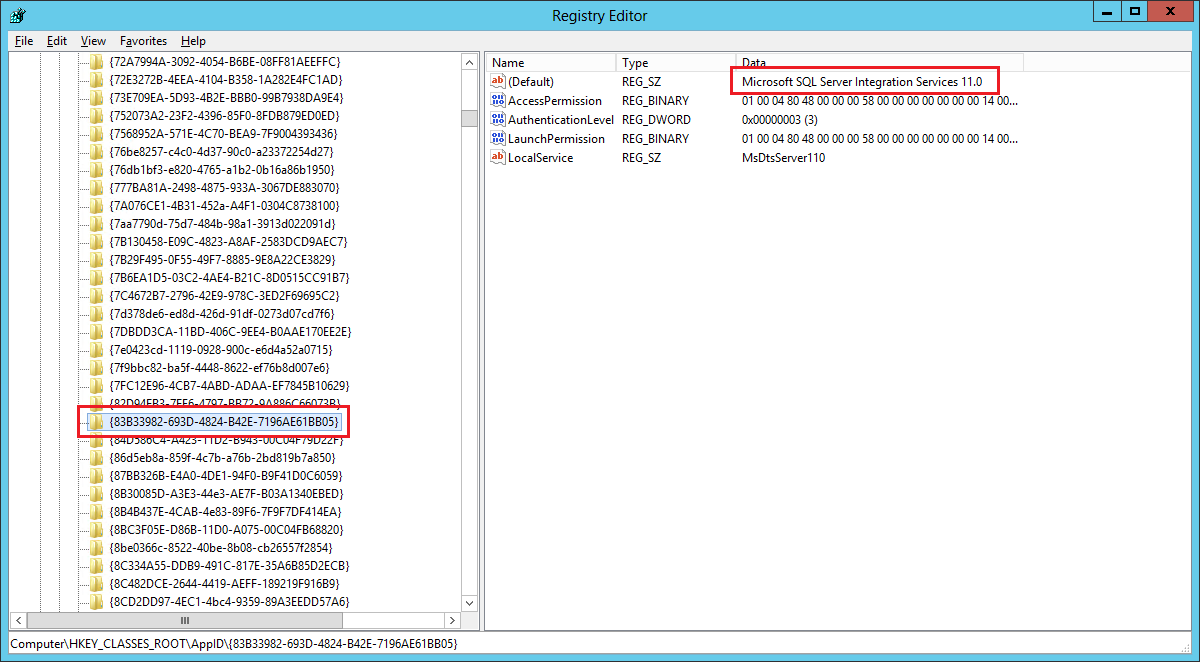
{83B33982-693D-4824-B42E-7196AE61BB05}
 to the user DOMAIN\spSQL SID (S-1-5-21-1258338518-4216542334-3912338986-3766) 
from address LocalHost (Using LRPC) running in the application container 
Unavailable SID (Unavailable). This security permission can be modified using 
the Component Services administrative tool.
Event Xml:
...

Solution
  1. Launch RegEdit and perform a search on the APPID presented in the error message.  You will find this APPID associated with the Microsoft SQL Server Integration Services 11.0 service.
    Resolving this error follows pretty much the same steps undertaken to resolve other DCOM errors.  Namely, you need to enable the local launch and local activation permission.
  2. Launch the Component Services applet, navigate to Console Root > Component Services > Computers > My Computer > DCOM Config.
  3. Scroll down to Microsoft SQL Server Integration Services 11.0.
  4. Right-click and choose Properties.  A dialog appears.
    .
  5. In the Launch and Activation Permissions group, click the Edit button.  
  6. Add the SQL Server service account (eg, spSQL), allow it both the Local Launch and Local Activation permissions,
    and then click OK.
    If you experience an error after clicking OK, to the affect that you don't have permissions to do this, you will need to return to the registry key you looked at earlier, take ownership of it, and then grant full control over this key to the SQL Server service account identified in the error message.  Don't worry: this is a common problem.  
  7. The resolution is implemented immediately.
References
Notes
  • I continued to monitor for this event for up to one week afterwards and did not observe this error to return.

Tuesday, May 12, 2015

SharePoint 2013 Tip: how get list of site collection URLs and their lengths

Use this SQL script below.  In SSMS, right-click on the database name the site collection resides in, choose New Query, and then just paste and execute the script.
SELECT CONCAT([DirName], N'/', [LeafName]) AS [FullRelativePath], LEN(CONCAT([DirName], N'/', [LeafName])) AS [Length] FROM [dbo].[AllDocs] ORDER BY [Length] DESC
References
Notes

Thursday, March 26, 2015

SQL Server 2012: How to configure it for access within the SharePoint 2013 Farm

Introduction

SQL Server 2012 must be properly configured to accept remote connections from SharePoint 2013 servers in the SharePoint farm.  This includes:
  • Enabling remote connections, 
  • Enabling the TCP/IP protocol, 
  • Setting the desired port, 
  • Ensuring the browser service is started and
  • Configuring firewall exceptions
Steps for configuring each of these are presented in this posting.  This posting assumes static ports and that standard ports 1433 and 1434 will be used for communication.  Once you have completed all configuration steps, steps are provided for quickly and conveniently testing access to the database server from another server (such as a prospective farm server).  This posting is an updated version of an earlier posting, modified to to focus on SQL Server 2012 Standard and to account for domain GPO control over Windows Firewall settings.

Enabling Remote Connections
  1. Launch SQL Server Management Studio (SSMS) as administrator.
  2. In Object Explorer, right-click the server name and select Properties.
  3. In Select a page, select Connections.
  4. Ensure that Allow remote connections to this server is enabled:
Enable TCP/IP Protocol
  1. Launch SQL Server Configuration Manager
  2. At left, expand SQL Server Network Configuration.
  3. Select Protocols for [NameOfYourSQLServerInstance].
  4. Ensure that the Status of the TCP/IP protocol is Enabled.
Start SQL Server Browser Service
  1. Launch SQL Server Configuration Manager.
  2. At left, select SQL Server Services.
  3. Ensure that the SQL Server Browser service state is Started and that its Start Mode is set to Automatic:
Set Desired Port
  1. Launch SQL Server Configuration Manager.
  2. At left, expand SQL Server Network Configuration.
  3. Select Protocols for [NameOfYourSQLServerInstance].
  4. At right, right-click on TCP/IP, and then select Properties.
  5. Scroll to the bottom of the list.
  6. Ensure that TCP Dynamic Ports is empty and that TCP Port is set to 1433.
  7. Restart the database engine.
Configure Firewall Exceptions
NOTE: these steps assume that Windows Firewall is controlled via GPO and thus firewall settings cannot be set directly through Windows Firewall but must be made via modification of the Local Group Policy.
  1. Go to Control Panel > Administrative Tools.
  2. Launch Local Security Policy.
  3. Expand: Security Settings > Windows Firewall with Advanced Security - Local Group Policy Object > Inbound Rules.
  4. Configure Inbound Rule for TCP 1433
    1. At right, right-click and then select New Rule...
    2. Select Port, and then click Next.
    3. Select TCP.
    4. Select Specific local ports, enter 1433, and then click Next.
    5. Select Allow the connection, and then click Next.
    6. Enable Domain, Private and Public and then click Next.
    7. Enter a unique name, and then click Finish.
  5. Configure Inbound Rule for UDP 1434
    1. Repeat steps 4.1 through 4.7, above, this time selecting UDP and entering 1434.
  6. Configure Program Exception for sqlbrowser.exe
    1. At right, right-click and then select New Rule...
    2. Select Program, and then click Next.
    3. Select This program path, and then click the Browse button.
    4. Navigate to: C:\Program Files (x86)\Microsoft SQL Server\90\Shared.
    5. Select sqlbrowser.exe, and then click Open
      .
    6. Click Next.
    7. Select Allow the connection, and then click Next.
    8. Enable DomainPrivate and Public and then click Next.
    9. Enter a unique name, and then click Finish.
  7. Configure Program Exception for sqlservr.exe
    1. At right, right-click and then select New Rule...
    2. Select Program, and then click Next.
    3. Select This program path, and then click the Browse button.
    4. Navigate to: C:\Program Files\Microsoft SQL Server\MSSQL11.CSSP\MSSQL\Binn.
    5. Select sqlservr.exe, and then click Open.
    6. Click Next.
    7. Select Allow the connection, and then click Next.
    8. Enable DomainPrivate and Public and then click Next.
    9. Enter a unique name, and then click Finish.
  8. Restart the machine hosting SQL Server.
Test Access
  1. Logout of the SQL Server
  2. Log into a server intended to be used for hosting SharePoint.
  3. Go to Control Panel > Administrative Tools.
  4. Launch ODBC Data Sources (32-bit).
  5. Select the User DSN tab.
  6. Click the Add button.
  7. Scroll down, select SQL Server, and then click Finish.
  8. Enter a name, enter the name of the database server machine (or the alias if you have configured that), and then click Next.
  9. Select With Windows NT Authentication using the network login ID, enable Connect to SQL Server to obtain..., and then click Next.
    1. If connectivity was established, the next page of the wizard is presented.
    2. Otherwise, and error message will be displayed:
      .
  10. If testing was successful, you are now ready to proceed with installing SharePoint Server 2013. Otherwise, review the configuration steps presented above and verify that you have executed each of them correctly.  If this still fails, disable the firewall on the SQL Server machine and try testing connectivity again.  If disabling the firewall enables access, the issue involves firewall configuration.  If so, check with your sys admins as to how domain GPO may affect firewall configuration and even override local changes.
References
  • Thanks to Andrzej Gołębiowski at Cx3 for the original posting that presents this topic so well.

SQL Server 2012: Error while enabling Windows feature : NetFx3, Error Code : -2146498298

Problem

You are installing a new instance of SQL Server 2012 onto Windows Server 2012.  During the installation, you see the following error:

Solution

  • Install the .NET Framework 3.5 feature.  No need to install HTTP or non-HTTP activation along with this.
References
  • You'll need the Windows Server 2012 disk or ISO.
  • Routine installation will fail.  You'll need to Specify An Alternate Source Path to enable the installation to succeed.  You'll see this setting during the feature installation.  It's near the bottom of the panel.  Alternatively, you can also use a DOS shell command (see reference).
  • After doing this and re-running the installation, you may see this error appearing:
    An error occurred creating the configuration section handler for userSettings/Microsoft.SqlServer.Configuration.LandingPage.Properties.Settings...
    If you do, no worries.  First, close the installation panel.  Then, navigate to:
    C:\Users\[YourUsername]\AppData\Local\ Microsoft_Corporation
    and delete the folder there that starts with LandingPage.exe_.  Then re-run the installation.

Tuesday, February 24, 2015

SharePoint: Cannot connect to database master at SQL Server

Problem
You are trying to configure a new SharePoint instance and run the PowerShell command to build the configuration database, New-SPConfigurationDatabase.  The database is installed as a default instance using all defaults.  When you run this command in an elevated SharePoint Management Shell, an error is returned:
New-SPConfigurationDatabase : Cannot connect to database master at SQL server at <yourdb>. The database might not exist, or the current user does not have permission to connect to it.
Creating an inbound Windows Firewall rule on port 1433 does not resolve this issue.
  
Troubleshooting

  1. Verified that the account this command is running under (the SharePoint Setup User Administrator account) has been granted the securityadmin and dbcreator fixed server roles on the backend SQL Server instance.  
  2. Granted it the sysadmin role, repeated command, but same error.  
  3. Ran the command using the actual database server name, but same error.
  4. Checked Windows Firewall on the backend: did not identify anything that appeared to be blocking default port 1433 for inbound connections, but also did not find anything explicitly allowing access on this port.  
  5. Configured an inbound rule to allow any access on port 1433.  The repeated command, but same error.
  6. Created empty Data Link, configured using database alias, and then tested connection: failed.
  7. Tried again using actual database server name and then IP address: both tests failed.
  8. Discussed this issue with a systems administrator, as to whether firewall rules are controlled via GPO and whether creating a rule using the standard process will in fact implement the rule. He informed me that, no, rules created using the standard process are not in fact implemented.  
  9. He showed how to discover what rules are implemented (Windows Firewall > Windows Firewall with Advanced Security on Local Computer > Monitoring > Firewall). Reviewing this list, found that the the rule created previously was not listed.
  10. The systems administrator showed how to update the local GPO using gpedit.msc.
  11. Created new inbound rule on port 1433 using gpedit.  
  12. Checked the list noted above, but did not find new rule.
  13. Discussed with systems administrator who showed how to update local computer with modifications to its GPO: use gpupdate /force in an elevated command shell.
  14. Executed this command.  Was prompted that "Certain Computer policies are enabled that can only run during startup.  OK to restart?"  Chose No.
  15. Checked list: new inbound rule not found.
  16. Restarted server.
  17. Checked list: new inbound rule now listed.
  18. Created empty Data Link, configured using database alias, and then tested connection: success!
  19. Reran command to create new configuration database: success!

Solution

  1. Create inbound rule on the farm backend that allows inbound connections on the port used for database connections.  Create this rule in the local computer GPO using gpo editor gpedit.msc.
  2. Force the backend GPO to update computer settings.
  3. Restart the backend.
References
  • Some knowledge of Windows Server management was helpful here in being able to ask the systems administrator the right questions so as to obtain useful information.
  • This issue applies to all SharePoint versions.
  • Thanks to Thomas Vochten for an excellent tip on how to quickly explore database connection issues.

Thursday, November 20, 2014

SQL Server 2012: Detection of product..., feature SQL_Tools_ANS failed during request for component

Problem

You manage a SharePoint 2013 farm having a single SQL Server 2012 instance.   You see the following warnings appear in the SQL Server application log:  
 
Log Name:      Application
Source:        MsiInstaller
Date:          [Date/Time]
Event ID:      1001
Task Category: None
Level:         Warning
Keywords:      Classic
User:          SYSTEM
Computer:      [SQL Server 2012]
Description:
Detection of product '{A7037EB2-F953-4B12-B843-195F4D988DA1}', feature 
'SQL_Tools_ANS' failed during request for component 
'{6E985C15-8B6D-413D-B456-4F624D9C11C2}'

Log Name:      Application
Source:        MsiInstaller
Date:          [Date/Time]
Event ID:      1004
Task Category: None
Level:         Warning
Keywords:      Classic
User:          SYSTEM
Computer:      [SQL Server 2012]
Description:
Detection of product '{A7037EB2-F953-4B12-B843-195F4D988DA1}', feature 
'SQL_Tools_ANS', component '{0CECE655-2A0F-4593-AF4B-EFC31D622982}' 
failed.  The resource '' does not exist.

This warning does not appear to be associated with any observable adverse impact to the farm or its capabilities.

Solution
  1. As of the date of this posting, install SQL Server 2012 SP2. 
    This service pack is a servicing-only release.  It is also a rollup of all CUs that have been published in SP1 through SP1 CU9 and thus includes the hotfix previously published that fixes this specific problem.
References
 Notes
  • UPDATE 2/3/15: issue has not appeared to date.  Confirming resolution through installation of SP2.

Wednesday, June 4, 2014

SQL Server 2012: SQLServer Error: 15404 Could not obtain information about Windows NT group/user

Problem

In SQL Server 2012, you are configuring scheduled backup maintenance plans for your SharePoint 2013 farm databases. When you attempt to execute a maintenance plan, you experience the following error:
[date] [time],,Error,[298] SQLServer Error: 15404 <c/> Could not obtain 
information about Windows NT group/user [Account you are logged in as]<c/> 
error code 0x5. [SQLSTATE 42000] (ConnIsLoginSysAdmin)
Solution
  1. Determine the domain account that you will use to login to SQL Server as (eg, spAdmin) to create the farm database maintenance plans. 
  2. Launch Active Directory Users and Computers as administrator.
  3. Navigate to this account in the directory.
  4. Right-click this account and choose Properties.
  5. Select the Security tab.
  6. Click the Add button.
  7. Enter the SQL Server service domain account and click OK.
  8. On the Properties dialog, select this account in the Group or user names list.
  9. Ensure that Read is enabled and all its subpermissions (eg, Read account restrictions, Read general information, etc).  Disabling and enabling Read automatically enables all the Read subpermissions. 
  10. Click OK.
References
Notes
  • The error presented above appears in the SQL Server Error Logs: [ServerName] > Management > SQL Server Agent > Error Logs.

Monday, March 31, 2014

SQL Server 2012: An error occurred creating the configuration section handler for userSettings

Problem

You are performing an installation of Microsoft SQL Server 2012 Standard as part of deployment of a SharePoint Server 2013 farm.  On completion of the installation, you exit the installer and experience the following error message prompt on your desktop:
Unhandled exception has occurred in your application.  if you click Continue, the application will ignore this error and attempt to continue.  If you click Quit, the application will close immediately.

An error occurred creating the configuration section handler for userSettings/Microsoft.SqlServer.Configuration.LandingPage.Properties.Settings:Could not load file or assembly 'System, Version 4.0.0.0, Culture=neutral, PublicKeyToken=b77a5c561934e089' or one of its dependencies.  The system cannot find the file specified. (C:\Users\[username]\AppData\local\Microsoft_Corporation\Landingpage.exe_StrongName_ryspccglaxmt4nhllj5z3thycltsvyyx\11.0.0.0\use
.
.
.
Solution
  1. Remove the folder %localappdata%\Microsoft_Corporation.

References