Showing posts with label SharePoint 2010. Show all posts

Monday, September 24, 2018

SharePoint 2016 TIP: successfully patching/upgrading a farm when PSCONFIG fails

Sometimes, psconfig fails and you are unable to upgrade the farm due to problems associated with a content database due to various upgrade-blocking issues discovered in the content database.  Perhaps it's a development farm, and you are testing a content database having a various missing items or other issues.  Not to worry.  You can still upgrade the farm: just leave the problematic content database out of the initial upgrade.  Then, once you get the farm upgraded successfully, you can go back to the content database, mount it, troubleshoot it, and then upgrade it individually. Here's what you do:
  1. After executing psconfig and it fails, review the upgrade report and identify which content database was raising upgrade-blocking problems.
  2. Next, launch an elevated SharePoint Management Shell (if you haven't done so already) and execute the following commandlet to generate a list of content databases and their IDs:
    Get-SPContentDatabase | Select -Property Name,ID,WebApplication, @{e={$_.CurrentSiteCount};l='Sites'}, @{e={($_.DiskSizeRequired/1GB).ToString("0.##")};l='Size(GB)'} | ft -auto
    This commandlet generates a listing of content databases that conveniently also lists the number of sites in the content database as well as its site (in GB).
  3. Note down the ID of the problematic content database.
  4. In the same SMS, execute this commandlet to dismount the content database from the farm:
    Dismount-SPContentDatabase -Identity "[database ID]" -Confirm:$False
  5. Now re-execute psconfig:
    PSCONFIG -cmd upgrade -inplace b2b -wait
  6. Once the farm is successfully upgraded, mount the problematic content database using this commandlet:
    Mount-SPContentDatabase -Name "[database name]" -DatabaseServer "[alias]" -WebApplication "[web application URL]"
    Once you mount the content database, you will eventually see the usual health rule issue popping up, "Databases running in compatibility range: upgrade recommended."
  7. Review the Upgrade log files to identify the upgrade-blocking issues that prevented upgrade earlier.  
  8. Once you get these issues resolved, execute the following commandlet:
    Upgrade-SPContentDatabase -Identity [database ID or name] -UseSnapshot
    Use the -UseSnapshot switch to enable your users to continue to at least read their content while the upgrade process engages.
  9. If this still fails, use the data generated by the test upgrade report to guide your troubleshooting efforts.  First, dismount the database again, and then run this commandlet:
    SCRIPT Test-SPContentDatabase -name "[database name]" -webapplication "[web app URL]" | Export-CSV -Path "C:\UPGRADE.TEST.001.CSV"
  10. tbd

References

Notes

  • If you run psconfigui.exe and it fails, this failure will be entered into the Upgrade Status page in Central Administration.  Oddly, I have found that if I run psconfigui.exe again and it succeeds, this success won't be entered into the Upgrade Status list, even though the psconfigui.exe dialog plainly states that the upgrade succeeded.  What I have done then, to ensure that successful configuration is also noted on the Upgrade Status page, is to execute psconfig.exe (the non-UI version), and the successful completion of this is then reflected in the Central Administration Upgrade Status page.

Tuesday, July 31, 2018

SharePoint TIP: working with the farm property bag


Farm Property Bag

List farm properties$farm = Get-SPFarm
$farm.Properties.GetEnumerator() | Sort Name | fl -Auto
or
(Get-SPFarm).GetEnumerator() | Sort Name | fl -Auto
Add a farm property$farm=Get-SPFarm
$farm.Properties.Add("[name]", "[value]")
$farm.Update()
Set a farm property$farm.Properties["[name]"] = $value
$farm.Update()
Remove a farm property$farm.Properties.Remove("[name]")
$farm.Update()

References

  • Properties are stored in Hash-Table (Key-Value) format.
  • Not case-sensitive.
  • Same approach is used at the web application, site collection, web and list levels.  Each of these has a "Properties" collection.  For web application properties, you would use a web application object, for site collections, get an instance of the site collection object, and so on.
  • I have found that some SharePoint solution (e.g., farm solution) providers add properties to the farm properties bag for internal sharing of licensing information.
  • Properties must be added as key-value pairs.

Monday, May 7, 2018

SharePoint 2013: Add-SPSolution : The solution cannot be deployed.

Problem

You are a new admin engaged in upgrade testing of a customer SharePoint 2010 farm to SharePoint 2016.  You have mounted a copy of the production SharePoint 2010 content database to the development 2013 farm and reviewed the upgrade report.  No upgrading blocking issues were found, but there are many warnings involving third party solutions.  One third party solution, let's call it TPS1, is your focus in this test. Reviewing the installed farm solutions in Central Administration on the development farm, you find that a version of TPS1 was uploaded but unsuccessfully deployed to any web applications in the development farm.  You want to remove all traces of the solution so that you can start fresh.

The upgrade path you are engaging is like so:
SharePoint 2010 Farm   >   SharePoint 2013 Farm   >   SharePoint 2016 Farm
Content DB   >   Content DB   >    Content DB
TPS1 (2010)   >   TPS1 (2010) > TPS1 (2013)   >   TPS1 (2013) > TPS1 (2016)

You need to install the 2010 version of TPS1 to the 2013 farm so that when you perform the mount of the 2010 content database, any features and web parts deployed in the 2010 content database will sync with the solution and not generate any upgrade warnings.  Once the 2010 content database is mounted successfully to the 2013 farm, you intend to upgrade the solution prior to mounting the upgraded 2010 content database to the development 2016 farm.

Since it didn't seem to ever have been actually deployed, you simply perform a remove of solution using:
Remove-SPSolution -Identity "TPS1.wsp"
and it is unloaded without issue. You then download the latest build of the SharePoint 2010 version of TPS1.wsp, and then attempt to add it by executing:
Add-SPSolution -LiteralPath "D:\Temp\TPSA1.wsp"
You then see the following error message presented in the shell:
Add-SPSolution : The solution cannot be deployed.  The feature '[SomeFeatureID]' uses the directory "[SomeDirectory2]" in the solution.  However, it is currently installed in the farm to the directory "[SomeDirectory1]". Uninstall the existing feature before you install a new version of
the solution.
You commence troubleshooting.

Troubleshooting

  1. Looked in ...15\TEMPLATE\FEATURES folder for [SomeDirectory1].
    1. Not found
  2. Performed search in ...\15\TEMPLATE for [SomeDirectory1].
    1. Found it under ...\15\TEMPLATE\FEATURES\ADMIN.  The folder is empty.
  3. Pulled a listing of all features across the farm using Get-SPFeature | sort-object DisplayName | ft Displayname,ID -auto.
    1. Found a listing for "SomeDirectory1  SomeFeatureID"
  4. Pulled listing of all orphaned features using Get-SPFeature | ? { $_.Scope -eq $null }.
    1. Found a listing for "SomeDirectory1  SomeFeatureID".
  5. Attempted to get a handle on the orphaned feature using Get-SPFeature -Identity  '[SomeFeatureID]'.
    1. Returned error message:
      Get-SPFeature : Cannot find a Feature object with Path or Id:
      '[SomeFeatureID]'
      in scope Local farm.
  6. Attempted to get handle on the orphaned feature using its display name using $feature = Get-SPFeature | ? {$_.DisplayName -eq "SomeFeature"} followed by $feature.
    1. Feature information is displayed.
  7. Attempted to delete the feature using $feature.delete.
    1. Returned nothing.
  8. Pulled listing of all orphaned features using Get-SPFeature | ? { $_.Scope -eq $null }.
    1. Feature is not listed.
  9. Now attempted to add the most recent build of the solution using Add-SPSolution -Path "D:\2010\TPS1.wsp"
    1. Succeeded.

Solution

  • Check for orphaned features if unable to install updated versions of third-party solutions.

References

  • Thanks to Anatoly Mironov for pointing the way to the solution.  His clear description helped me quickly identify and resolve the problem.

Saturday, March 24, 2018

SharePoint 2010 TIP: List Web Application Pools and Identities using PowerShell

In SharePoint 2010, a single PowerShell commandlet, Get-SPServiceApplicationPool, will list all application pools and their identities for service applications.  However, there is no corresponding commandlet for directly listing application pools and their identities for web applications, but it can be done using piping:
Get-SPWebApplication | Select-Object DisplayName,{$_.ApplicationPool.Name},{$_.ApplicationPool.ID},{$_.ApplicationPool.UserName} | ft -auto
If you want to put the output directly into a file, just do this:

Get-SPWebApplication... | Export-CSV -Path "[Path]\[FileName.csv]"
The column headers will be the default property names or expressions that you used. You can customize and improve the output column headers by doing this:
Get-SPWebApplication | Select-Object DisplayName, @{N="Application Pool"; E={$_.ApplicationPool.Name}}, @{N="ID";E={$_.ApplicationPool.ID}}, @{N="Identity"; E={$_.ApplicationPool.UserName}} | ft -auto
 If you don't know the other ApplicationPool properties that you can get from Get-SPWebApplication, just do this:
$wa = Get-SPWebApplication -Identity "[web app name]"
$wa.ApplicationPool

References

Notes

  • This also works for SharePoint 2013 and 2016.

Friday, February 23, 2018

SharePoint Designer 2010: Cannot load C:\PROGRA...\fpsrvutl.dll

Problem

The problem involved attempting to install SharePoint Designer 2010 (32-bit) to Microsoft Windows 7 hosted on a VMware Horizon Client.  The first issue encountered occurred during installation, when the installation routine was unable to find and install a component. After working through this problem, a new one was encountered that occurred when attempting to launch the product. This posting documents the troubleshooting steps taken and the solution that was found to this problem.

Troubleshooting

  1. Action: Attempted to install SharePoint Designer 2010 (32-bit) onto Windows 10. 
    1. Result: installation failed due to inability to the inability to find a needed component.
      SharePoint Designer requires the following component to be installed: Microsoft .NET Framework Version 3.5 SP1.
    2. Research: Checking Windows 10 installed features verified that .NET Framework 3.5 was not installed:
      .
  2. Action: attempted to install .NET Framework 3.5. This required files to be downloaded.
    1. Result: Windows was unable to find the required files to complete the request changes. Error code: 0x800F081F.
      .
    2. Research: searched for and found related reference; error code indicated that there was a path problem for Windows to find needed files.  However, no option was provided during the download process for indicating a path, which suggest that this option was locked down by GPO.  Rather than engage in paperwork delays, it was suggested to try a Windows 7 VMware Horizon client.
  3. Action: attempted installation of SharePoint Designer 2010 (32-bit) onto Windows 7 (64-bit) on VMware Horizon client.
    1. Result: During installation, experienced Error 1712, One or more of the files required to restore your computer to its previous state could not be found.  Restoration will not be possible.  Setup failed. Rolling back changes...
      .
    2. Research: one post seemed to indicate that a simple re-installation attempt might work, after performing a reboot of the machine.  
  4. Action: rebooted machine and then attempted re-installation.
    1. Result: succeeded.
  5. Action: attempted to launch SharePoint Designer 2010 (32-bit).
    1. Result: experienced new error, Cannot load "C:\PROGRA~2\COMMON~1\MICROS~1\Web Server Extensions\14\BIN\fpsrvutl.dll".
      .
    2. Research: one post seemed to indicate that there might be an incompatibility with Office 2016.  Spoke with VMware Horizon Administrator, who confirmed that Office 2016 is installed to new Windows 7 clients bey default.  The administrator then redeployed the client without Office 2016 installed.
  6. Action: attempted to uninstall SharePoint Designer 2010 (32-bit).  
    1. Result: The uninstallation completed but with an error: Microsoft SharePoint Designer 2010 uninstall did not complete successfully.
      .
    2. Research: found one posting that led to discovery of a Microsoft tool for removing Office from a machine.
  7. Action: used tool to attempt to remove all Office components and artifacts from Windows 7 client.
    1. Result: successful.
  8. Action: performed re-installation of SharePoint Designer 2010 (32-bit).
    1. Result: Successful.
  9. Action: attempted to launch Designer again.
    1. Result: experienced new error, Cannot load "C:\PROGRA~2\COMMON~1\MICROS~1\Web Server Extensions\14\BIN\fpsrvutl.dll".
    2. Research: checking machine logs, found a number of warnings concerning the inability to modify various registry keys and subkeys. One posting seemed to indicate that perhaps installed AV was preventing access.  Discussed this with VMware Horizon administrator who indicated that a Windows 7 client could be deployed that did not have AV installed.  Checking the permissions for these keys found that the identity under which the modification was being performed was the identity of the user that performed the installation and attempted to launch SPD2010.  Verified that this identity was a member of the local Administrators group.  Checked the permissions of the local Administrators group for the listed registry keys and subkeys and found that this group only had READ permission for each and every listed key.
  10. Action: performed installation of SharePoint Designer 2010 (32-bit) onto new Windows 7 client that did not have Office of AV installed.
    1. Result: successful.
  11. Action: attempted to launch SPD2010 on new client.
    1. Result: experienced same error as previously, Cannot load "C:\PROGRA~2\COMMON~1\MICROS~1\Web Server Extensions\14\BIN\fpsrvutl.dll".
    2. Research: given the nature of the warnings, it was determined that perhaps modifying the permissions of the listed registry keys and subkeys so as to grant the local Administrators group full control would resolve the launch issue.
  12. Action: changed ownership of each of the listed keys to the local administrators group, and then granted the local Administrators group Full Control; and then attempted to launch SPD2010 - again on new client.
    1. Result: same error as previously.
    2. Research: reviewing the machine log, found same warnings.  Then determined that granting the local Administrators group Full Control to each of the registry hives might resolve the issue.
  13. Action: changed ownership of each of the hives containing the listed keys to the local Administrators group, and then changed the permission granted to the local Administrators group to Full Control.  Then tried re-installing and re-launching on new client
    1. Result: successful installation but launching failed with usual error.
    2. Research: discussed with other staff members who did have SharePoint Designer 2010 successfully installed.  Checked their installation files against the one that was used and found significant difference in size.  Checking this further found that the version used by other staff members was 64-bit version.  This suggested that perhaps 64-bit version might be successfully installed and operated on Windows 7 VMware Horizon client.
  14. Action: completely removed SharePoint Designer 2010 (32-bit) from Windows 7 VMware Horizon original client (used previously in steps 3 - 9).  Performed fresh install, which was successful.  Then attempted to launch.
    1. Result: SharePoint Designer 2010 (64-bit) successfully launched and was able to successfully connect to sites.

Solution

  • On Windows 7 VMware Horizon clients, install 64-bit version of SharePoint Designer 2010.

References

  • Listing of all warnings found in Application log:
    • \Software\Classes\Interface\{85AEE342-48B0-4244-9DD5-1ED435410FAB}\TypeLib
    • \Software\Classes\Interface\{85AEE342-48B0-4244-9DD5-1ED435410FAB}\TypeLib
    • \Software\Classes\Interface\{85AEE342-48B0-4244-9DD5-1ED435410FAB}\ProxyStubClsid3
    • \Software\Classes\Interface\{85AEE342-48B0-4244-9DD5-1ED435410FAB}\ProxyStubClsid
    • \Software\Classes\Interface\{85AEE342-48B0-4244-9DD5-1ED435410FAB}
    • \Software\Classes\Interface\{1BB5DDC2-31CC-4135-AB82-2C66C9F00C41}\TypeLib
    • \Software\Classes\Interface\{1BB5DDC2-31CC-4135-AB82-2C66C9F00C41}\ProxyStubClsid32
    • \Software\Classes\Interface\{1BB5DDC2-31CC-4135-AB82-2C66C9F00C41}\ProxyStubClsid
    • \Software\Classes\Interface\{1BB5DDC2-31CC-4135-AB82-2C66C9F00C41}
    • \Software\Classes\Interface\{2DBEC0A7-74C7-4B38-81EB-AA8EF0C24900}\TypeLib
    • \Software\Classes\Interface\{2DBEC0A7-74C7-4B38-81EB-AA8EF0C24900}\ProxyStubClsid32
    • \Software\Classes\Interface\{2DBEC0A7-74C7-4B38-81EB-AA8EF0C24900}\ProxyStubClsid
    • \Software\Classes\Interface\{2DBEC0A7-74C7-4B38-81EB-AA8EF0C24900}
    • \Software\Classes\Interface\{5DE00405-F9A4-4651-B0C5-C317DEFD58B9}\TypeLib
    • \Software\Classes\Interface\{5DE00405-F9A4-4651-B0C5-C317DEFD58B9}\ProxyStubClsid32
    • \Software\Classes\Interface\{5DE00405-F9A4-4651-B0C5-C317DEFD58B9}\ProxyStubClsid
    • \Software\Classes\Interface\{5DE00405-F9A4-4651-B0C5-C317DEFD58B9}
    • \Software\Classes\TypeLib\{56D04F5D-964F-4DBF-8D23-B97989E53418}\1.5\0\win32
    • \Software\Classes\TypeLib\{56D04F5D-964F-4DBF-8D23-B97989E53418}\1.5\HELPDIR
    • \Software\Classes\TypeLib\{56D04F5D-964F-4DBF-8D23-B97989E53418}\1.5\FLAGS
    • \Software\Classes\TypeLib\{56D04F5D-964F-4DBF-8D23-B97989E53418}\1.5
    • \Software\Classes\CLSID\{8854F6A0-4683-4AE7-9191-752FE64612C3}\InprocServer32
    • \Software\Classes\CLSID\{8854F6A0-4683-4AE7-9191-752FE64612C3}\TypeLib
    • \Software\Classes\CLSID\{3050F667-98B5-11CF-BB82-00AA00BDCE0B}\InprocServer32
    • \Software\Classes\CLSID\{3050F819-98B5-11CF-BB82-00AA00BDCE0B}\InprocServer32
    • \Software\Classes\CLSID\{AE24FDAE-03C6-11D1-8B76-0080C744F389}\InprocServer32
    • \Software\Classes\CLSID\{25336920-03F9-11CF-8FD0-00AA00686F13}\InprocServer32
    • \Software\Classes\CLSID\{3050F391-98B5-11CF-BB82-00AA00BDCE0B}\InprocServer32
    • \Software\Classes\TypeLib\{00020430-0000-0000-C000-000000000046}\2.0
    • \Software\Classes\CLSID\{0BE35204-8F91-11CE-9DE3-00AA004BB851}\InprocServer32
    • \Software\Classes\CLSID\{0BE35203-8F91-11CE-9DE3-00AA004BB851}\InprocServer32
    • \Software\Classes\TypeLib\{2A75196C-D9EB-4129-B803-931327F72D5C}\2.8
    • \Software\Classes\Interface\{BEF6E003-A874-101A-8BBA-00AA00300CAB}\TypeLib
    • \Software\Classes\Interface\{BEF6E003-A874-101A-8BBA-00AA00300CAB}\ProxyStubClsid32
    • \Software\Classes\Interface\{BEF6E003-A874-101A-8BBA-00AA00300CAB}\ProxyStubClsid
    • \Software\Classes\Interface\{BEF6E003-A874-101A-8BBA-00AA00300CAB}

Thursday, January 18, 2018

SharePoint 2013: Interview Questions

Introduction

Below are some interview questions that come to mind vis a vis hiring for a SharePoint administrator or developer. This is a work in progress.  These interview questions primarily focus on hiring for SharePoint farm administrators and developers

Questions

  1. General Farm Administrator (non-technical)
    1. These non-technical farm administrator questions can be accessed by any interviewer and do not require that the interviewer has a technical background.  They can be asked over the phone. The information gathered from these questions can help in making the first cut among applications.
    2. What is your current role with SharePoint and with what versions and editions?
      1. Description
        1. In asking this question, the key thing is to determine the level of involvement, and this can be found by discovering the role that the candidate had or currently has.  
        2. Versions might be 2007, 2010, 2013 and 2016.  2010-2016 editions might be SharePoint Foundation or SharePoint Server. 2007 editions would be Office SharePoint Server and Windows SharePoint Services.
        3. Use the responses to quickly gauge the adequacy of the candidate's experience: if you are hiring for a farm administrator role, you need someone who has at least assistant farm admin experience in administering a farm - site collection administrator or subsite or content administrator experience is inadequate as there are significant differences in experience and qualifications between a site collection administrator and a farm administrator.  Farm administrators must deal with server-level issues and server-level troubleshooting; site collection administrators and below do not. 
        4. If you're looking for someone to fill a farm admin role, look for someone having farm-level experience.  A candidate who has both server administration and SharePoint administration experience is ideal.
      2. Example Responses:
        1. Farm Administrator, SharePoint Server 2013 Enterprise
        2. Lead farm administrator
        3. Assistant farm admin
        4. Site Collection administrator, SharePoint Server 2010
        5. Site administrator
    3. How many farms do you manage, what are their types and the number of users?
      1. Description
        1. responses to this question provide insight into the candidate's depth of experience and adequacy for the admin role you are trying to fill.
        2. The more closely the candidate's level of experience here aligns with the needs you are trying to fill the better.
        3. The more farms simultaneously managed, the greater likelihood that the candidate is able to multi-task and is familiar with SharePoint and general IT architecture matters, such as partitioning production from development and why this is useful.
      2. Example Responses:
        1. Three farms: production, development and staging, 2000 users
        2. Two farms: production and development, 400 users
        3. One farm: production and has 200 users.
        4. Three farms: production, development and a disaster-recovery/staging farm.
    4. How many servers are there in the farms you currently administer and what are their types and roles?
      1. Description
        1. Responses to this question provide insight into the candidate's depth of experience and adequacy for the role you are trying to fill.
        2. Responses also help provide insight into the candidate's familiarity with SharePoint farm servers and their roles.  
        3. An experienced SharePoint administrator will show factual knowledge of all server roles and will discuss these roles in describing current farm admin experience.  The experienced candidate will likely refer to SharePoint farm servers by their roles - "App" or "batch" server for application server and "WFE" or "front end" for web front end; and so on.
        4. The experienced and knowledgeable candidate will also demonstrate the ability to explain the differences between these basic SharePoint farm roles - database server, application server and web front end server - and the primary purpose of their roles in delivering SharePoint capabilities to users.
      2. Example Responses
        1. The production farm has 8 servers: two SQL database servers in cluster or AlwaysOn configuration, two application servers, three web front ends and a single OWA server.
        2. The staging farm is a mirror of the production farm.
        3. The development farm is a single Windows Server that has SQL Server and SharePoint Server co-hosted.
        4. The disaster recovery farm is a full mirror of the production farm, having the same number and types of servers and configuration.
    5. What previous roles have you had involving SharePoint?
      1. Description
        1. The goal here is to determine historical experience with SharePoint.  The longer the history, the longer the demonstrated commitment to and likely depth of experience in SharePoint administration and development.
      2. Example Response:
        1. 2010: designer
        2. 2010-2011: website management
        3. 2011-2013: asst farm admin
        4. 2013-2016: lead farm admin
    6. What IT and SharePoint-related certifications do you have?
      1. Description
        1. Certifications do not show ability but basic knowledge and commitment.  
        2. A candidate that has many IT certifications is someone in my view who has demonstrated commitment to information technology as a career.  
        3. A candidate that has certifications in a particular field relating to the field you are hiring for obviously has demonstrated commitment to that field.
        4. SharePoint is a complex system of systems software application that relies deeply on the capabilities of other system software, including; Windows Server, SQL Server, Internet Information Services Server, and so on.  Therefore, a candidate who has certifications in related fields in addition to SharePoint demonstrates deeper involvement in SharePoint and appreciates the importance of knowledge in related fields.
        5. The more demonstrated knowledge and ability that a candidate has in these related software the better that candidate will be at troubleshooting server issues in general and SharePoint in particular because administration and troubleshooting SharePoint issues frequently involves interacting with these other software. Therefore, a candidate that has certifications in other areas, particularly Windows Server and SQL Server, is a candidate that will likely be able to administer and solve SharePoint issues more effectively.
        6. The more significant the position being hired for (eg, SharePoint farm administrator), the more the expectation that the candidate has some certifications.
        7. Certifications are not in my view a sole determining qualification, but provide a useful edge factor, where all other qualifications are equal, in determining candidate adequacy.
      2. Example Responses
        1. MCIT, MCTS SharePoint 2010, 2013
        2. MCPs and MTAs in Windows Server, Networking and SQL Server
        3. MCSE Windows Server

  2. General Developer (non-technical)
    1. These non-technical developer questions can be accessed by any interviewer and do not require that the interviewer has a technical background.  They can be asked over the phone. The information gathered from these questions can help in making the first cut among applications.
    2. What is your current role as a SharePoint Developer?

  3. Technical - Developer
    1. These questions serve to probe the candidate's knowledge, skill and experience in SharePoint development.  These questions would useful for engaging candidates who have passed the first cut and have been asked to a face-to-face interview.  These questions do not focus on esoteric aspects of SharePoint development but on the common, routine aspects that developers would engage when working with SharePoint.
    2. General Knowledge
      1. What is the general hierarchy of SharePoint architecture?
        1. Answer: Farm > Web Application > database > site collections > webs > lists > columns.
      2. In preparing a deployment plan for a new feature, what is the very first step that should be performed prior to actually deploying the feature to the farm?
        1. Answer: backup a backup should be performed prior to making any significant changes to a farm.
      3. What is a freely available tool developed by Microsoft useful for viewing ULS logs?
        1. Answer: ULS VIewer 
        2. Any SharePoint involved person who has experience retrieving and analyzing ULS logs will most likely also have knowledge of ULS Viewer, and so this is a discovery question.
      4. What is the name of the UI used to administer a SharePoint farm?
        1. Answer: Central Administration
      5. What is the name of the shell that can be used to administer a SharePoint farm via PowerShell commandlets?
        1. Answer: SharePoint Management Shell.
    3. General Developer Knowledge Questions
      1. What is an event receiver?
        1. Answer: Event Receivers are functions that get triggered when a specific event occurs in SharePoint.
      2. Followup question: how are event receivers useful?
        1. Answer: Using event receivers, automated actions can be implemented that respond to changes in SharePoint lists and list items.
      3. What is a "WSP"?
        1. Answer: Windows Solution Package.  It is the solution set of files generated by Visual Studio that implements changes to SharePoint.
      4. What is a "solution Manifest"?
        1. Answer: A solution manifest file defines the constituent parts of a solution, including its files, assemblies, code access security, Web Parts, Features, site definitions, and other resources
      5. What are two ways in which you can install a sandbox WSP?
        1. Answer: 1) upload to site collection solution gallery, and 2) via PowerShell.
      6. What are some differences between a farm solution and a sandbox solution?
        1. Answers: 
          1. Farm Solutions
            1.  Hosted in the IIS worker process
            2. Run code that can affect the entire farm
            3. Trust level is at the farm level
            4. May require App pool and IIS restart/recycle
            5. Only a farm administrator can install a farm solution
          2. Sandbox Solutions
            1.  Hosted in the user code solution process
            2. Only affects the site collection
            3. Trust level is limited to the site collection
            4. Does not require IIS recycle
            5. A site collection administrator or above can install a sandbox solution
      7. What are the two main types of navigation that are available OOTB for a SharePoint page and where are they located on the page?
        1. Answer:
          1. Global, also known as the Top Link Bar, located near the top of the page
          2. Local, also known as Quick Launch, located along the left column of the page.
      8. What is a "feature" in SharePoint?
        1. Answer: Features are packages of functionality that you can activate and deactivate in SharePoint farm.
        2. Answer: Features make it easier to activate or deactivate functionality in the course of a deployment, and administrators can easily transform the template or definition of a site by turning on or turning off a particular Feature in the user interface.
      9. Followup: name some scopes that a feature can have:
        1. Answer: 
          1. Farm
          2. Web Application
          3. Site
          4. Web
      10. Followup: how do you deploy a feature to a SharePoint Farm?
        1. Answer: it is first developed in Visual Studio and then packaged as a WSP file, which is then uploaded and installed to the farm.

    4. General Developer Troubleshooting Questions
      1. You are developing a workflow using SharePoint Designer. The workflow has multiple steps.  The workflow fails at some place in the workflow.  You want to find out at what step in the workflow is failing.  What is one simple way in which you can do this that only requires minor modification of the workflow?
        1. Answer: add Log actions before and after each step or action.
      2. You are attempting to activate the SharePoint Server Publishing feature for a web.  How do you activate the feature without using PowerShell?
        1. Answer: Site Collection > Web > Settings > Site Settings > Site Actions > Manage site features
      3. On clicking Activate for the SharePoint Server Publishing feature, the next page you see is the "Sorry, something went wrong" message displayed.  How would you begin troubleshooting this problem?
        1. Answer: use the correlation ID presented in the "Sorry, something went wrong" message to search in the ULS logs for the group of messages associated with the activation failure.
      4. Follow up: you try to use PowerShell to retrieve all messages associated with the correlation ID, but nothing is returned.  What could be the problem?
        1. Answer: PowerShell retrieves those messages that have been copied to the Diagnostics database, but this only occurs on a periodic basis.  If PowerShell retrieves nothing, it's likely that they haven't yet been harvested and copied to the Diagnostics database where they are retrievable by using PowerShell.
      5. You are using SharePoint Designer to develop workflows.  One day, you fire up Designer and find that the Workflow 2013 option no longer appears when trying to add 2013 workflows to a list.  What is one possible reason for this?
        1. Answer: Workflow 2013 has been disabled or inactivated in or removed from the farm.
      6. Followup: you discover that Workflow 2013 is installed and operating.  What is a simple troubleshooting step you can perform locally to possibly resolve the problem?
        1. Answer: clear the Designer cache.
    5. General Developer Experience Questions
      1. Describe a project that you developed for SharePoint that involved CSOM.
      2. How would you develop a client-side site collection scope solution such that it can be migrated to a new farm via simple database attach method?
        1. Answer: ensure that all resources are stored locally in the site collection (e.g., JavaScript files, CSS files stored in resources folder).
      3. Please describe a client-side solution that you developed.
      4. Please describe a server-side solution that you developed.
      5. Please describe an app model solution that you developed.
  4. Technical - Administrator
    1. These questions serve to probe the candidate's knowledge, skill and experience in SharePoint administration.  These questions would useful for engaging candidates who have passed the first cut and have been asked to a face-to-face interview.  These questions do not focus on esoteric aspects of SharePoint administration but on the common, routine, practical aspects of SharePoint that administrators would engage when working with SharePoint on a daily basis
    2. General Knowledge
      1. What is the general hierarchy of SharePoint architecture?
        1. Answer: Farm > Web Application > database > site collections > webs > lists > columns.
      2. In preparing a deployment plan for a new feature, what is the very first step that should be performed prior to actually deploying the feature to the farm?
        1. Answer: a backup should be performed prior to making any significant changes to a farm.
      3. What is a freely available tool developed by Microsoft useful for viewing ULS logs?
        1. Answer: ULS VIewer 
        2. Any SharePoint involved person who has experience retrieving and analyzing ULS logs will most likely also have knowledge of ULS Viewer, and so this is a discovery question.
      4. What is the name of the UI used to administer a SharePoint farm?
        1. Answer: Central Administration
      5. What is the name of the shell that can be used to administer a SharePoint farm via PowerShell commandlets?
        1. Answer: SharePoint Management Shell.
    3. General Administrator Knowledge Questions
      1. A user needs to store files in his department's SharePoint site.  What app would you create for the user to store the files?
        1. Answer: Document Library
      2. What are four common permission levels that can be assigned to user accounts or SharePoint user groups?
        1. Valid Answers: Full Control, Design, Edit, Contribute and Read
      3. What are the names of four common OOTB SharePoint user groups?
        1. Answers: Owners, Designers, Members, Contributors, Visitors
      4. When you add a document library to a website, what are the default permissions of the document library?
        1. Answer: same as the website
      5. Followup: what do you have to do in order to make the document library's permissions different from its parent website?
        1. Answer: break inheritance
      6. How do you navigate to the Site Settings page of a site collection?
        1. Answer: click Settings ("Gear" icon) > Site Settings.
      7. How do you break the permissions inheritance for a subwebsite from its parent site?
        1. Answer: navigate to: Settings > Site Settings > Users and Permissions > Site permissions > PERMISSIONS Ribbon tab > Stop Inheriting Permissions
      8. What are three ways in which users can upload files to a document library?
        1. Answer: Upload Document button, Drag-and-drop onto library, open Windows Explorer view onto library
      9. Explain one or two ways in which users can upload their spreadsheets to their SharePoint website.
        1. Answers:
          1. Copy & paste spreadsheet columns and rows onto  the list, use the
          2. Import Spreadsheet app and use the
          3. Export Table to SharePoint list capability in Excel.
      10. How do you add a new subwebsite to an existing website in SharePoint?
        1. Answer: Navigate to: Site Settings ("Gear" icon) > Site Content > click on new subsite.
    4. Advanced Administrator Knowledge Questions

    5. Bonus Questions
      1. What little-known tool can be useful in troubleshooting User Profile Synchronization issues?
        1. Description: there is a little
        2. Hints: "Forefront identity"
        3. Response: Forefront Identity Manager 2010.

Friday, August 5, 2016

Tips and Tricks with SharePoint and the Chart web part

Add an Annotation

  1. Get to the chart's Advanced Settings.
  2. At left, in the Select an Element panel, click Annotations.  Above the settings panel, you'll see Annotation Menu.  The dropdown will be empty if you haven't configured an annotation yet.   The settings panel will also be empty, since there is no annotation to configure yet. Look to the right of this dropdown for the little "+" symbol.
  3. Click this "+" symbol.  This will create a new generic annotation.  It will appear above left of your chart, "Annotation1".  The Settings panel will also be refresh and now display a number of settings that you can configure.  You'll be working with the Anchor and Position groups of settings.
    Note on positioning: the coordinates here are always relative, from 0 - 100, starting from the top left corner of the chart. In other words, positive Y is down and positive X is to the right.
  4. Scroll down to the Position group.  Notice that the X and Y settings are both 0.  These coordinates are associated with the top left corner of the annotation box.  Change Y to be 50, and then click somewhere else.  The change is implemented immediately.  The annotation box has been moved down vertically to the center of the Y axis.
  5. Now adjust the X and Y settings as desired.  The next thing you can add is a pointer.  This pointer will start at the annotation box and reach to any point on the graph you want.  To configure pointer settings, you need to scroll back up to the Anchor group.
  6. In the AnchorX and AnchorY settings, enter the X and Y values of where you would like the pointer to stop.  It will start at the annotation box and end where you want it to end.  The start of the pointer will automatically adjust depending on whether the end value is to the right, left, above or below the annotation box.  Adjust the settings as desired.  The next value to adjust is the Text value, which is the actual text you want displayed in the annotation box.
  7. Scroll down to the Appearance group, and then a bit more until you see the Text setting.  It will appear just above the MapArea group.  By default, this setting will be "Annotation1" if this is the first annotation you are adding.  If your message is long, it will stretch out the annotation box.  You can adjust the width and height of this box, and text will automatically wrap as necessary.
  8. Scroll down to the Position group.  Edit the Height and Width settings as desired.  Lastly, you can adjust the way in which the text is presented in the annotation box - left,right justified, centered, etc.  By default, it will be centered.  Let's change this to left-justified.
  9. Scroll to the top, look for the Alignment settings, and change it to TopLeft.  At present, the annotation box has the pointer coming from the bottom middle.  I would like it to come from the right side.  To do this, I need to move the annotation to the left enough, and that requires further adjustment of the X and Y settings in the Position group.
  10. When you are done, click the Finish button at the bottom of the page.  At any time, to return to this annotation, get to the Advanced Settings dialog, select Annotations from the Select and Element panel, and then select the appropriate annotation from the dropdown.

References

Tuesday, March 22, 2016

SharePoint 2013: How to implement task form hyperlinks in Approval workflow email notification

Introduction

The SharePoint 2010 Approval workflow is one of the standard workflows that comes with SharePoint 2010 and 2013.  The task notification that it sends to approvers presents buttons that provide approvers with one-click access to the task's Edit and View forms.  These buttons are not visible if the approver accesses his or her email via web browser.  Instead, this one-click access must be provided by hyperlinks.  This procedure shows you how.

Solution

  1. Launch SharePoint Designer 2013.
  2. Navigate to the site containing the target document library.
  3. In the Navigation pane, at left, select the Workflows item.
  4. Under Globally Reusable Workflow, click on Approval - SharePoint 2010.  
    A popup will appear enabling you to create a copy.
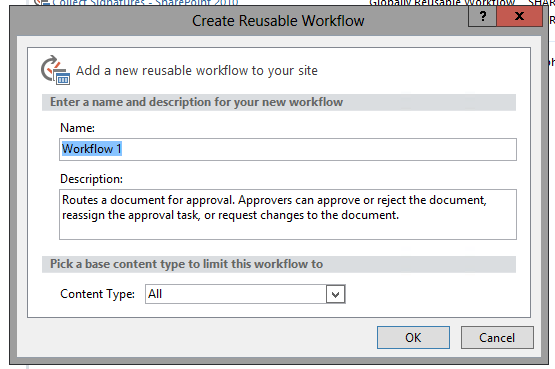
  5. Click Yes. A dialog will appear.
  6. Enter a name for the workflow, and description, and then click OK.  The results pane updates to display another tab.  On this tab, you will see a single stage.
  7. Click on Approval Workflow Task (en-US) Copy 1.  The tab updates to display the workflow customization page of the copied workflow.
  8. In the Customization section, click Change the behavior of a single task.  The tab updates to display the copied workflow that you can now edit.  
    There are four email notification actions in this workflow.  You only need to modify the ones in the When a Task is Pending stage.
  9. Click on Current Task:Assigned To. A dialog appears displaying the email format.
    It's the last line that will be modified here.
  10. Replace task item 3 with
    Open this Task to accept or reject the approval, or View the status of this task for more actions (if you cannot update this task, you may not have access to it).
  11. Select Task, and then click the hyperlink symbol at upper right . This opens the Edit Hyperlink dialog.
  12. For the Address, click the Function button . This opens the Lookup for String dialog.
  13. From the Data source dropdown, select Current Task: Approval Workflow Task (en-US).
  14. Then from the Field from source dropdown, select Form_URN.
  15. Click OK, and then click OK again. The Task word in the email is now a hyperlink to the task's edit form.
  16. Next, select the View word in the email, and then click the hyperlink symbol.  The Edit Hyperlink dialog appears.
  17. For the Address, click the Function button.
  18. From the Data source dropdown, select Workflow Context
  19. From the Field from source dropdown, select Workflow Status URL.
  20. Click OK, and then click OK again.  The email content will now look like this
  21. Click OK.  The Define Email Message dialog closes.
  22. Now, repeat these steps for the Workflow Context: Initiator email notification, and you are done.
  23. Save and Publish.  You are done.  Now you can add this workflow as you would any of the other 2010 globally re-usable workflows.  
  24. One important note: the workflow you created (from a OOTB workflow) is only available within the scope of the web or site you created it in.  This means that if you connected SharePoint Designer to a particular web within a site collection, the workflow will only be available within that web.  If you want it to be available to all webs within a site collection, you must create it in the root web of the site collection..

References

Monday, October 26, 2015

Error 10016: The application-specific permission settings do not grant Local Launch permission for the COM Server application with CLSID {24FF4FDC-1D9F-4195-8C79-0DA39248FF48}

Problem

While performing a routine check of the logs of the machine hosting the SharePoint Server 2010 farm Central Administration, I saw the following error in the machine's System log:

Log Name:      System
Source:        Microsoft-Windows-DistributedCOM
Date:          [date/time]
Event ID:      10016
Task Category: None
Level:         Error
Keywords:      Classic
User:          SYSTEM
Computer:      [servername]
Description:
The application-specific permission settings do not grant Local Launch permission for the COM Server application with CLSID
{24FF4FDC-1D9F-4195-8C79-0DA39248FF48}
and APPID
{B292921D-AF50-400C-9B75-0C57A7F29BA1}
to the user NT AUTHORITY\SYSTEM SID (S-1-5-18) from address LocalHost (Using LRPC). This security permission can be modified using the Component Services administrative tool.
Event Xml:
...
Solution

The problem involves a permission issue and is resolved similar to other instances of this error (see references below).  In this case, the account needing the permission to access the registry keys is the local system account.

References

Monday, June 15, 2015

SharePoint TIP: [MissingWebPart] WebPart class is referenced [1] times in the database - how to locate the webpart

When performing migrations, whether from 2007 to 2010 or 2010 to 2013, you may see the following warning appear: 1) in response to executing PreUpgradeCheck; 2) in the Missing Server-side Dependencies report; and 3) in other event logs:
[MissingWebPart] WebPart class [Webpart GUID] is referenced [1] times in the database [Content Database Name], but is not installed on the current farm. Please install any feature/solution which contains this web part. One or more web parts are referenced in the database [Content Database Name], but are not installed on the current farm. Please install any feature or solution which contains these web parts.
It is difficult to resolve this migration issue since no page location information is provided.  To find this information, you must search several tables in the content database, including the WebParts, AllDocs and Webs tables.  Using inner joins, you can find this information with a single SQL statement, shown below, executed on the source database.  This statement works in SQL Server 2008:
USE WSS_Content_Database
SELECT tp_WebPartTypeID AS 'WebParts.WebPartTypeID(WebPartClassGUID)', 
       tp_PageUrlID AS 'Webparts.tp_PageUrlID', 
       AllDocs.Id AS 'AllDocs.Id', 
       AllDocs.WebId  AS 'AllDocs.WebId', 
       LeafName  AS 'AllDocs.LeafName', 
       DirName  AS 'AllDocs.DirName', 
       ListId AS 'AllDocs.ListID', 
       Webs.Id AS 'Webs.ID', 
       Webs.Title AS 'Webs.Title', 
       FullUrl AS 'Webs.FullURL'
FROM WebParts 
INNER JOIN AllDocs 
ON tp_PageUrlID = AllDocs.Id
INNER JOIN Webs ON AllDocs.WebId = Webs.Id
WHERE tp_WebPartTypeID = '[Webpart GUID]'
Executing this script returns a table containing the above fields, specifically, the page (leaf) and directory (DirName) names, as well as the site title (Webs.Title) and URL (Webs.FullURL) to help you locate the problematic web part:
Executing this SQL script returned the site, SS, containing the problematic web parts.  This script was useful in that it brought to attention a site that had been overlooked in migration preparation and was no longer being used.  As a result, though problematic web parts were seen in the migration report, it was not known where these were.  Navigating to the site, the problematic web parts were immediately identified:
Then, appending ?Contents=1 to the page URL, I viewed the web part maintenance page:
Using the page features, I was able to remove the problematic web parts.  Re-executing stsadm.exe -o PreUpgradeCheck,
and then viewing the SharePoint Products and technologies Pre-Upgrade Check Report, specifically, the Feature Information section, found no more [Missing] feature items.


References
Notes
  • Thanks to Claus with BoostSolutions for publishing the article on this.  I've made some minor tweaks to his original script.  Note that an inner join command is written as two words, "INNER JOIN."

Friday, June 12, 2015

SharePoint 2013: Working with Move-SPUser and Set-SPUser when migrating users

Print this posting
Introduction

This posting consolidates my notes with regard to migrating user accounts from old SharePoint instances to new ones. I had the need to cleanup and migrate a subset of users from a legacy, Internet-facing SharePoint 2007 farm, using a dedicated instance of Active Directory Lightweight Directory Services (ADLDS), all co-located on a single server. User account maintenance over the years had not be consistent nor robust and as a result user account formats were inconsistent and also reflected changing domain implementations.  Looking through the site collection's AllUsers list, one would see varying user account userLogin formats, such as:
  • i:0#.f|OLDDOMAIN1|First.Last
  • i:0#.f|OLDDOMAIN2|First.Last
  • i:0#.f|OLDDOMAIN3|First.Last
  • [machine name]\First.Last
Even the display names of these user accounts frequently contained varying domain names and other odd formats.  I also found some duplication and special character usage. There was no relationship between the old ADLDS and the new AD authentication services, and so performing a simple user migration was not possible.  Alot of user accounts had never experienced a login event, and many others had not been used in over a year.  Given the formatting of the old user accounts, additional effort was needed to cleanup the user account formatting in SharePoint, and then appropriately map the user accounts to their new implementations in AD.

Migrating Old User Accounts to New Domain

To do this, I first migrated the content DB using the usual pathway of: 2007 --> 2010 --> 2013, where both the intermediary 2010 and final 2013 farm web applications were configured as standard claims-based authentication web applications.  After the content DB was satisfactorily migrated and the site brought up, I reviewed the list of users in the old ADLDS, drafting a list of which ones really needed to be migrated.  To draft this list, I pulled user account information via repadmin, and then I coordinated with legacy site stakeholders, providing them lists of the old accounts for them to review.  I also pulled user account lastlogins to better identify and determine user accounts useful to migrate.  Over the course of several rounds of stakeholder review and comment, a final list was drafted.

Next, I used this basic script to pull the list of users in the migrated site collection.  The migrated content was contained in a single content database, a single web application, containing a single site collection. So, I only needed to look at one AllUsers list, like so:
$web=Get-SPWeb [new web application URL] $web.AllUsers | Select-Object DisplayName, ID, userLogin | Sort-Object DisplayName | Format-table -auto
This list revealed the extent of what needed to be done.  About a third of what was listed here needed to be migrated.  Because the usernames were so varied, it wasn't clear to me that writing a loop function would be the most time-effective approach.  Instead, I copied the target user accounts into Excel, and then used standard Excel string manipulation tools to generate the following set of statements for each user account to be migrated:
$User=Get-SPUser -Identity "i:0#.f|OLDDOMAIN|First.Last" -Web "[new web app URL]" Move-SPUser -Identity $User -NewAlias "NEWDOMAIN\First.Last" -IgnoreSID -confirm:$false
In some cases, users had two accounts, due to what appear to have been misspellings or a customization request by a user, such as to shorten a name to a letter or two.  In such cases, I had to create two sets of user account migration steps, each set moving the legacy user account to the same destination account:
$User=Get-SPUser -Identity "i:0#.f|OLDDOMAIN|First.Last" -Web "[new web app URL]" Move-SPUser -Identity $User -NewAlias "NEWDOMAIN\First.Last" -IgnoreSID -confirm:$false $User=Get-SPUser -Identity "i:0#.f|OLDDOMAIN|F.Last" -Web "[new web app URL]" Move-SPUser -Identity $User -NewAlias "NEWDOMAIN\First.Last" -IgnoreSID -confirm:$false
I then incorporated these statements into PowerShell script and executed.  It was useful to have it as a script because in this way I could re-execute the script over multiple trial migration runs - each fresh content database migration bringing with it the old user accounts untouched, and a portion of these would need to be re-mapped to their counterparts in AD.

Cleaning Up User Account Display Names

Another aspect of migrating the old user accounts involved cleaning up the user account DisplayName.  Here again I found a variety of formats and special characters and here again I used Excel string manipulation tools to quickly draft a set of statements for each user account needing cleanup:
$name=Get-SPUser -Identity "i:0#.f|OLDDOMAIN|First.Last" -Web "[New web app URL]" Set-SPUser -Identity $name -Web "[new web app URL]" -DisplayName "First Last"
These statements I also placed into a PowerShell script for re-use during subsequent trial migration runs.

References
  • Thanks to Trevor Seward for his assistance in this posting that helped me to better understand some aspects of the Move-SPUser command.
  • The Move-SPUser NewAlias value must be in Pre-Windows 2000 format.  This means 20 characters or less. Otherwise, you will see errors like, "Move-SPUser : The user does not exist or is not unique."  You can determine the pre-Windows 2000 username currently set for the user by going to the account in Active Directory Users and Computers control panel, and then selecting the Account tab.
  • The Move-SPUser NewAlias value must be of a user account that exists within the new AD domain.  For example, if you are moving a user to DOMAIN\First.Last, then DOMAIN\First.Last must be a valid AD account already created in the domain.  If this user account does not exist, you will see an error like, "Move-SPUser : The user does not exist or is not unique." 
  • You need to refresh the $web object to see the changes.  This is because executing the Get-SPWeb command effectively takes a snapshot of the site collection and stores it in the $web object (as shown above).  If you want to see your changes reflected in the AllUsers list, you need to re-execute Get-SPWeb.

Friday, June 5, 2015

SharePoint 2007: How to Migrate to SharePoint 2010

Print this posting
Introduction

This posting consolidates my notes with respect to migrating a SharePoint 2007 farm to SharePoint 2010 using the database attach method.  It focuses only on content migration, not service application migration. The SharePoint 2010 web application is configured to use standard NTLM authentication and non-encrypted (HTTP).  This posting installs SharePoint 2010 onto Windows Server 2012; you'll need the May 1, 2014, SharePoint 2010 SP2 slipstream media for this. It also employs SQL Server 2012.

Procedure
  1. Verify/create SharePoint 2010 service accounts.
  2. Build SharePoint Server 2010 farm (destination farm) on Windows Server 2012.
  3. On destination farm, create new web application NTLM and site collection.
  4. On source farm, execute STSADM.exe –o preupgradecheck and resolve any issues that are found.
  5. On source farm, set content databases to read-only.
  6. On source farm, perform content backup.
  7. On source farm, copy SharePoint Server 2007 farm content database backup to 2010 farm.
  8. Restore 2007 database to 2010 farm database server.
  9. In SSMS, map SharePoint Setup User Admin account as DBO of restored 2007 content database.
  10. Verify database read-only property is false.
  11. Remove 2010 web application content database.  You will need to rename the content database files (data and log) if the database you are migrating has the same file names.
  12. Mount 2007 content database to 2010 web application.
  13. Optional: initiate Visual Upgrade on all sites in site collection.
References
  1. SharePoint 2010 SP2 and Windows Server 2012 R2
  2. SharePoint 2010: How to install onto Windows Server 2012
  3. Upgrade from Office SharePoint Server 2007 or Windows SharePoint Services 3.0 to SharePoint Server 2013 or SharePoint Foundation 2013
  4. Migrate from classic-mode to claims-based authentication in SharePoint 2013
  5. SharePoint 2010 Claims: Migrating Windows users to Claims users on existing sharepoint site
  6. Migrate from MOSS 2007 to SharePoint 2010 - Step by Step
  7. Perform a database attach upgrade to SharePoint Server 2010
  8. Checklist for database attach upgrade (SharePoint Server 2010)
  9. Upgrade Worksheet for SharePoint 2010 Products
  10. SharePoint 2013: Service Account Configurations and Permissions
  11. Error lors de l’installation des Office Web Apps 2010 sur Windows 7
  12. SharePoint 2010: Install on Windows Server 8 Beta
  13. SharePoint 2010 on Windows Server 2012!
  14. Installing SharePoint 2010 and SQL Server 2012 on Windows Server 2012 Release Preview
  15. Upgrade and migration: Stsadm operations (Windows SharePoint Services)
Notes
  • Where is stsadm.exe?: The stsadm command can be found here (default): C:\Program Files\Common Files\Microsoft Shared\Web Server Extensions\12\BIN.
  • 2010 SP2 Slipstream ISO file name: Need to use sw_dvd5_sharepoint_server_2010w_sp2.2_64bit_english_mlf_x19-65035.iso to perform this installation.  This version is available through your Microsoft Volume Licensing or MSDN subscription.
  • If the (source) databases you are migrating have the same file names as the ones already in the 2010 farm (destination), detaching the destination databases is not enough in this case.  You must also rename the destination database files.  Otherwise, you will encounter errors like the following during the restore database process:
    TITLE: Microsoft SQL Server Management Studio
    ------------------------------
    Restore of database '[content database name]' failed.
    (Microsoft.SqlServer.Management.RelationalEngineTasks)
    ------------------------------
    ADDITIONAL INFORMATION:
    System.Data.SqlClient.SqlError: File "[source content database file]" cannot 
    be restored over the existing "C:\Program Files\Microsoft SQL 
    Server\MSSQL11.MSSQLSERVER\MSSQL\DATA\[destination content database file].mdf". 
    Reissue the RESTORE statement using WITH REPLACE to overwrite pre-existing 
    files, or WITH MOVE to identify an alternate location. 
    (Microsoft.SqlServer.SmoExtended)
    

Friday, February 27, 2015

SharePoint: User Profile Synchronization Service stuck on starting

Problem

You check the Manage Profile Service page of your User Profile Service Application and note that the Profile Synchronization Status seems to be stuck on starting.  You remove the connection that was used by the Profile Synchronization service that is now trying to start, but this doesn't change the status.  You even try removing the User Profile Service application, but find that the User Profile Synchronization Service remains stuck on Starting.

Solution
  1. Using the SharePoint Setup User Administrator account, log into the SharePoint server on which the User Profile Service application is running.
  2. Open an elevated SharePoint Management Shell.
  3. Execute Get-SPServiceInstance:
    This returns a listing of service instances on all SharePoint servers.  You can clean up the output by using: Get-SPServiceInstance | Where-Object {$_.Server -Like "*yourserver*"} | Select-Object TypeName, ID, status | Sort-Object TypeName
  4. Search through the listing returned by this command for User Profile Synchronization Service, and then note the  Id for this service (not the UserProfileApplicationGuid).
  5. Execute Stop-SPServiceInstance -Identity <theID>
  6. In Central Administration, navigate to Manage Services on Server. The service status should now be Stopping.
  7. Open the server Services applet.
  8. Restart the SharePoint Timer Service.
  9. Check Manage Services on Server again: after a few seconds, the status should change to Stopped.
    While this stops the service, it does not stop the associated user profile import timer job, User Profile Service_ProfileSynchronizationJob, from still being run and generating a critical application error event 6398 every time.  To stop this job, you can either remove the User Profile Service application or disable the job itself.  To remove the UPA, use Central Administration's Manage Service Applications page.  To disable the timer job, continue to the next step.
  10. Execute Get-SPTimerJob | Where-Object {$_.Schedule -Like "*1 minute*"} | Sort-Object Name | Select-Object name, ID, Status.
  11. Look for User Profile Service_ProfileSynchronizationJob, and then copy its ID.
  12. Execute Get-SPTimerJob -Identity <jobID> | Disable-SPTimerJob.
References
Notes
  • Stopping the service does not necessarily affect the import timer job.
  • Update 03/02/16: I attempted to uninstall the User Profile Service Application from Central Administration by deleting the service application.  This failed, and I then experienced the UPA being stuck on stopping.  SharePoint Services on Server indicated that UPA was Stopping.  Same in SharePoint Service Applications.  Executing Stop-SPServiceInstance on the UPA service, the following error was presented:
    Stop-SPServiceInstance : An object of the type Microsoft.SharePoint.Administration.SPServiceInstanceJobDefinition named
    "job-service-instance-5253819b-2e5b-49fe-b854-5970b970e97b" already exists under the parent
    Microsoft.SharePoint.Administration.SPTimerService named "SPTimerV4".  Rename your object or delete the existing object.
    At line:1 char:1
    ...
    I was able to resolve this by launching an elevated command shell and executing this stsadm command:
    stsadm -o provisionservice  -action stop -servicetype "Microsoft.Office.Server.Administration.ProfileSynchronizationService, Microsoft.Office.Server.UserProfiles, Version=14.0.0.0, Culture=neutral, PublicKeyToken=71e9bce111e9429c" -servicename FIMSynchronizationService
    as per this posting.  When I then executed Get-SPTimerJob... it showed that the UPA service having a status of Disabled.  When I checked the Sharepoint Services on Server status of UPA, it showed a status of Stopping.  I then again attempted to delete the service application from Central Administration Service Applications, this time it completed successfully.
  • Synchronization Service Manager: tool useful for troubleshooting the SharePoint User Profile Service Application.  You'll find it at this folder location:
    \Program Files\Microsoft Office Servers\15.0\Synchronization Service\UIShell
    Look for miisclient.exe.  It enables you to view the real-time status of UPA processes, among many other things.  I don't use it to manage FIM; just to view status information.  For example, I have used to troubleshoot a UPA that failed to start.  As I tried different troubleshooting steps, I monitored Synchronization Service Manager, watching in real-time to see how far UPA started, before stopping.  It also provides helpful other information, such as confirmation of the Domain Controller that it is connecting to.  If you configured UPA using Auto Detect for DC, you can now determine exactly which DC it is connecting to.  You can also get confirmation of the service account that is running UPA (eg, the farm service account), and the number.